Reference
Keyboard shortcuts, the menus, the project file and what needs an internet connection.
Keyboard shortcuts #
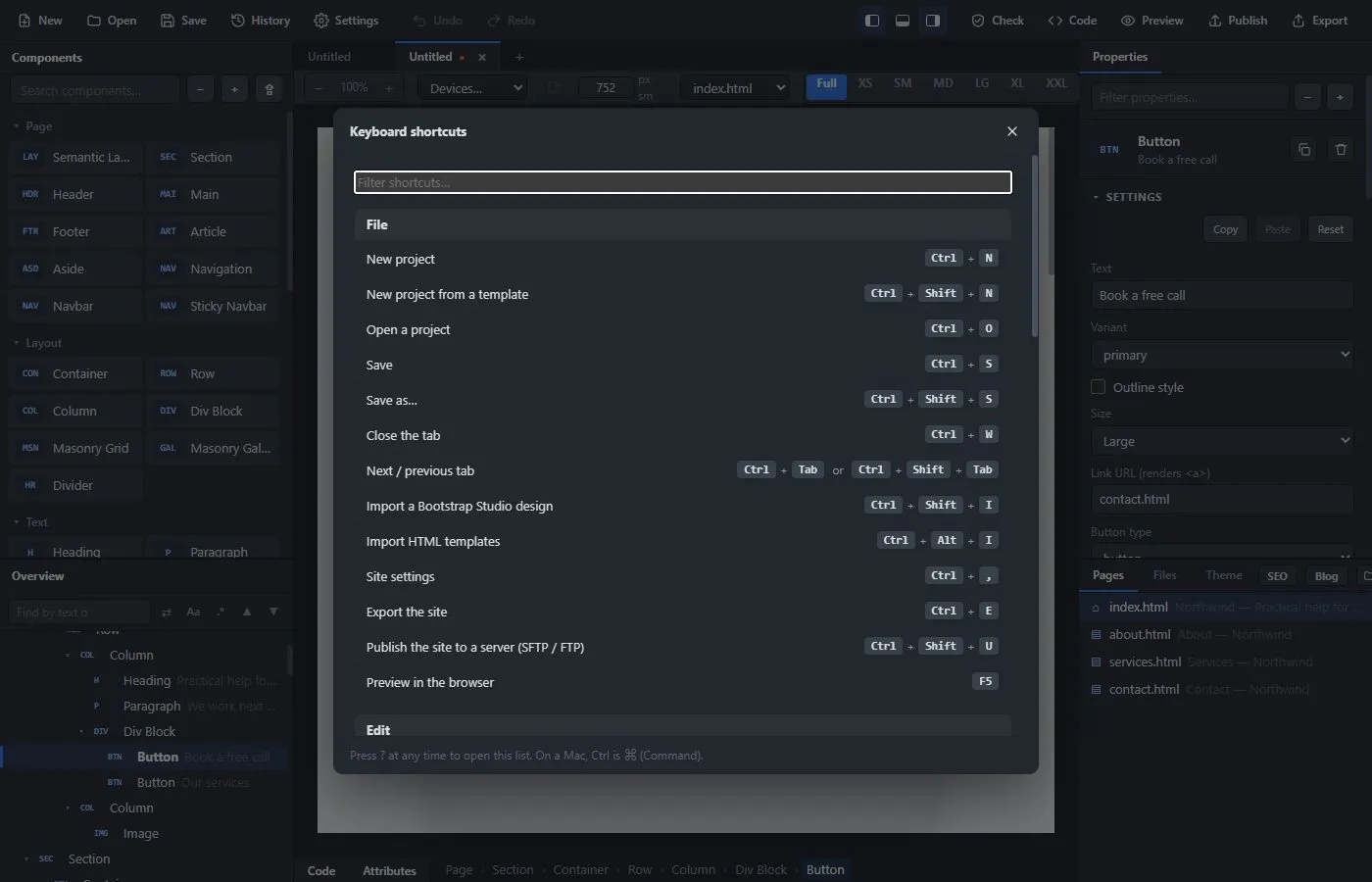
On a Mac, use Cmd (⌘) instead of Ctrl. Press ? in the editor, or Ctrl+/, to see this list inside the app.
Projects and tabs #
| Keys | Action |
|---|---|
| Ctrl+N | New blank project |
| Ctrl+Shift+N | New project from a template |
| Ctrl+O | Open a project |
| Ctrl+S | Save |
| Ctrl+Shift+S | Save as… |
| Ctrl+W | Close the tab |
| Ctrl+Tab / Ctrl+Shift+Tab | Next / previous tab |
| Ctrl+Shift+I | Import a Bootstrap Studio design |
| Ctrl+Alt+I | Import HTML templates |
| Ctrl+, | Site settings |
Output #
| Keys | Action |
|---|---|
| F5 | Preview in the browser |
| Ctrl+E | Export the site |
| Ctrl+Shift+U | Publish to a server |
| Ctrl+Shift+K | Check the site |
| Ctrl+U | View code |
Editing #
| Keys | Action |
|---|---|
| Ctrl+Z | Undo |
| Ctrl+Y (Cmd+Shift+Z on a Mac) | Redo |
| Ctrl+D | Duplicate the selected element |
| Delete | Delete the selected element |
| Esc | Select the parent element |
| Ctrl+F | Go to the search box above the Overview |
| Ctrl+Shift+F | Find and replace in the whole project |
| Double-click a text | Edit it on the page (Enter saves, Esc cancels) |
View #
| Keys | Action |
|---|---|
| Ctrl+1 / Ctrl+2 / Ctrl+3 | Desktop / tablet / phone size |
| Alt+1 / Alt+2 | Show or hide the left / right panel |
| Ctrl+J | Show or hide the code panel |
| Ctrl+Shift+J | Make the code panel fill the window |
| Ctrl + mouse wheel | Zoom the page |
The menus #
File: the menu is grouped into submenus. New (New Project, New from Template, New Website), Open (Open, Open from the Web), Import (Bootstrap Studio Design, HTML Templates, Blocks, Markdown Blog, Website from a Web Address), then Save, Save As and Version History. Site has Site Settings, Page Settings for All Pages and Check Site; Blog has Update Blog from API and Edit Blog Categories; Website Folder has Convert to Website Folder (Gather Assets Again in a website folder project), Remove Unused Assets and Make the Project Portable. Below those are Preview in Browser, Export Site and Publish to a Server, then Close Tab and Tabs (Next and Previous Tab).
Edit: Undo, Redo, Cut, Copy, Paste, Select All, Find and Replace in Project, Duplicate Element, Delete Element.
View: Desktop, Tablet and Phone sizes, View Code, Toggle Left, Right and Code Panel, and Reload, Developer Tools, zoom of the whole window and Full Screen.
Help: Keyboard Shortcuts, adding the app to the applications menu (Linux), Check for Updates and About.
The project file (.bsb) #
A project is one .bsb file. It is plain JSON text, so you can open it in any text editor, keep it in version control and compare versions. It holds:
- the pages, each with its tree of components,
- the site settings (name, address, color mode, look, style, fonts, languages and more),
- your CSS, the theme CSS, your scripts and the extra head code,
- the fonts, the blog settings, and the export options.
What is not in the file: your server details for Publish, your password, and your DeepL key. They stay on your computer, so you can share a project safely.
Pictures. A picture you choose on your computer is stored in the project as a link to the file on your computer. To send a project to someone, or to move it to another computer, use File → Website Folder → Make the Project Portable…. It copies those pictures into the project itself (and can shrink big ones on the way), so the file shows every picture wherever it is opened. A website folder project (File → New → New Website…) keeps its pictures and other files in an assets folder next to the project file instead, and needs none of this: send or move the whole folder. In the web demo, pictures are always stored inside the project.
Old projects. The app keeps opening older .bsb files. A newer file may use features that an older version of the app does not know.
Block files (.bsblock) #
A block you saved and exported is a .bsblock file. Import it with File → Import → Blocks… or the ⇪ button in the Components list.
What needs an internet connection #
You can edit, preview, save and export with no internet connection, because Bootstrap, the code editor and all the components come with the app. These need the internet:
- Checking for and downloading updates.
- Publishing to a server (you need a connection to your server).
- Translating with DeepL.
- Adding a Google font (the search and preview, and downloading its files). After the font files are saved with the site, nothing more is needed.
- Blog from an API and Open from the Web.
- Pictures, fonts and videos that you link by a web address show only when you are online.
- Maps and embedded videos on the finished site need the visitor to be online.
Where the app keeps things #
Besides your project files, the app keeps a little data of its own on your computer: your open tabs (so work comes back after a restart), the version history, blocks you saved, templates you imported, the publish settings per project, and your DeepL key (encrypted). None of this travels inside a project file.