Design and themes
Colors, corners, fonts and the overall look of your site, set once for every page.
You do not have to color each element by hand. The Theme tab and Site settings change the look of the whole site at once, and every page follows.
The Theme tab #
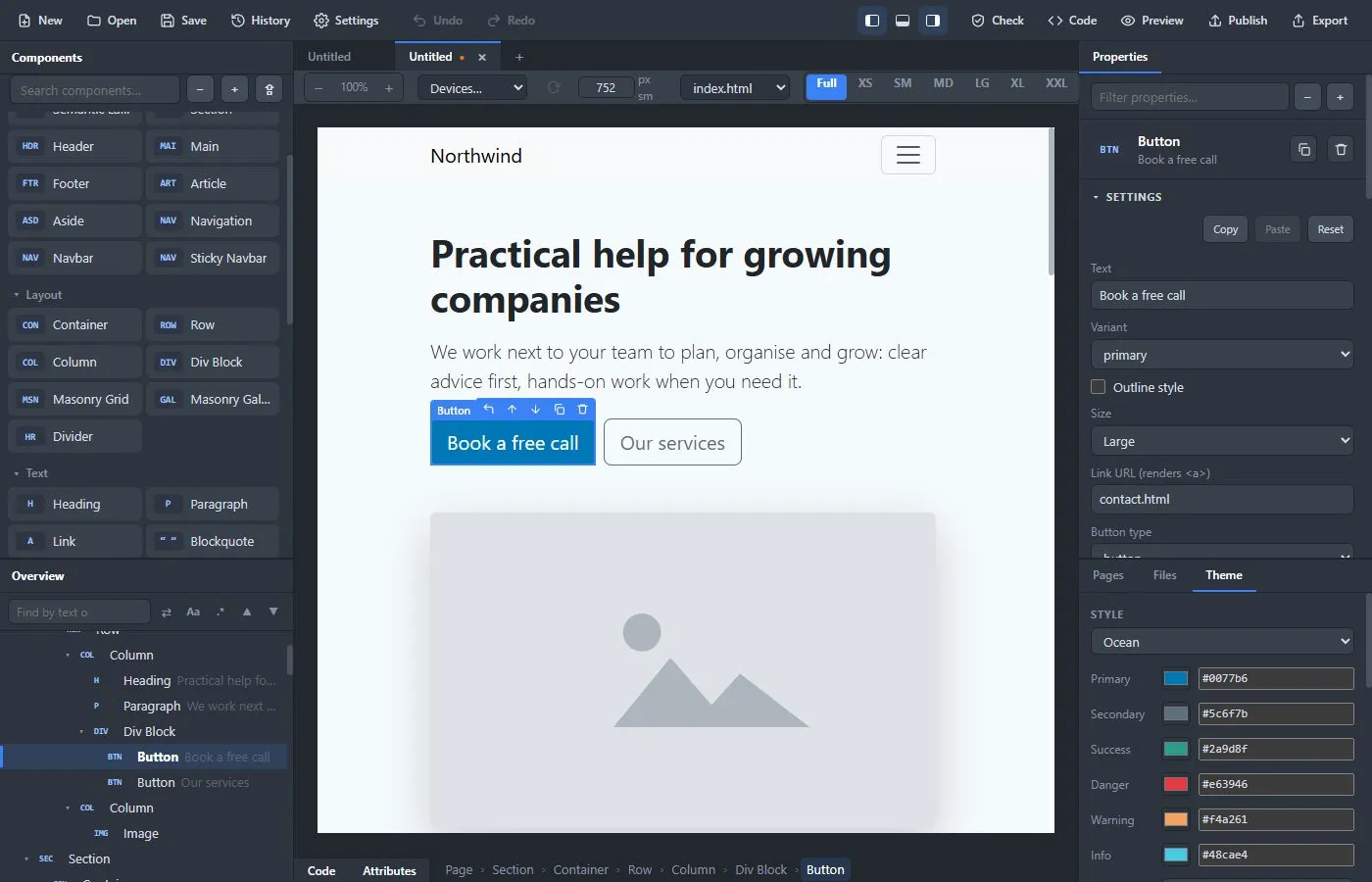
Open the Theme tab at the bottom right.
Style #
The Style menu starts you from a ready-made scheme: Ocean, Forest, Sunset, Berry, Slate, Mono, Playful, Lavender, Mint, Coffee, Citrus, Rose, Nordic, Terracotta, Corporate, Midnight or Sand. Every style fills in both modes: a tinted page, text, link and border colors for light mode and for dark mode, made from its colors, so switching the color mode shows a finished style. Some also set line height or the weight of headings. You can change any of these afterwards. Or keep Bootstrap default. Below the menu you can change anything:
- the six theme colors: Primary, Secondary, Success, Danger, Warning and Info. These recolor buttons, alerts, badges, links, form fields and more.
- Corners: from square to very round.
- Text size: the size of the body text.
- Light mode and Dark mode: the Page background, the Text, the Links and the Borders, once for each mode. Leave a color empty to keep Bootstrap's own. Switch the Color mode below to see the other mode on the page. The hover colors of links are made from the link color.
Theme builder. The button Open the Theme builder (with a preview)… at the top of the Theme tab opens the same settings in a large window, next to a preview of a page with a navbar, headings, links, buttons in every color, alerts, a card, form fields, a table and more. The preview has its own Light and Dark buttons, so you can check both modes without changing the project. Everything you change is applied to the project at once, and Undo takes it back. The window also has the Look (the same choice as in Settings → General), the page and heading fonts of the project, and Details: line height, how thick headings and buttons are, a heading shadow for all headings (small, medium, large, hard, glow, neon, outline or engraved, with an optional shadow color), and the shadow and border of cards. A text shadow set on a single heading still wins over the theme. Under Details you can also make buttons compact or roomy and show their text in capital letters, choose whether links are underlined, always, only on hover or never, and set how thick the form labels are. What you choose under Details also wins over the Look, so a heavier button text or a card without a border works with Glossy, Brutal or 3D as well. Borders sets the width (none, 1 to 4 px), the style (solid, dashed, dotted or double) and a finer corner radius than the Corners menu, from square to pill; the border color for light and dark mode is in the Light mode and Dark mode groups. Focus ring sets the width, color and opacity of the glow around a field, button or link that has the keyboard focus; click a field in the preview to see it. Navbar sets the background of the navbar for light and for dark mode (the text color is chosen to be readable), a shadow, a line below it and how thick the name on the left is. The colors are for navbars that use the default background; a navbar that has its own color in its settings keeps it. The Footer has the same: background colors for light and dark mode (for footers with the default background) and a line above it, which can be taken away. Headings can also get their own color in light and in dark mode. The Details are saved with My themes; the Look and the fonts belong to the project, so they are not.
My themes. Under the Style section, Save the current style… keeps it under a name on your computer, and Use puts a saved theme into any project (it replaces the Style settings; your own theme.css is not touched). Export… writes your themes to a file and Import… reads such a file, for moving them to another computer or sharing them. Themes are kept in the app, not in the project file.
The result is written to assets/css/style-preset.css when you export. It loads after Bootstrap and before your own CSS, so your own CSS can still override it.
Color mode #
Color mode sets whether the pages are light or dark. Changing it sets every page to that mode, and new pages start in it. A single page can still be changed in its own page settings.
You can also give visitors a choice: add a Theme Switcher component (Buttons & navigation). It lets a visitor switch between light and dark, and remembers their choice.
Theme CSS #
A Bootstrap theme from another source is a CSS file that recolors Bootstrap. Use Create theme.css to start an empty one, or Use a CSS file… to load one from disk. The order on every page is Bootstrap, then theme.css, then your own styles.css.
Bootstrap #
The version of Bootstrap that comes with the app is 5.3. It is copied into your exported site, so the site works without internet access.
The look of the components #
Site settings → General → Look restyles the buttons, cards, navbar, badges, menus and form fields in one go.
| Look | What it does |
|---|---|
| Standard | Plain Bootstrap |
| Glossy | A soft shine on buttons, badges and the navbar, lifted shadows and rounder corners |
| Glass | Semi-transparent, frosted panels over a soft colored backdrop |
| Iron | Dark, slightly rusty steel with bevels and square corners. It is always dark, whatever the color mode is |
| 3D | Raised keys for buttons that press down, layered shadows on cards that lift when you point at them, and fields that look pressed into the page |
| Brutal | Thick black lines, hard offset shadows, square corners and bold capital letters on buttons |
| Soft | Pill-shaped buttons and fields, no hard borders, gentle shadows and rounded panels |
| Line | Thin lines instead of shadows, a quiet flat look with light headings and underlined fields |
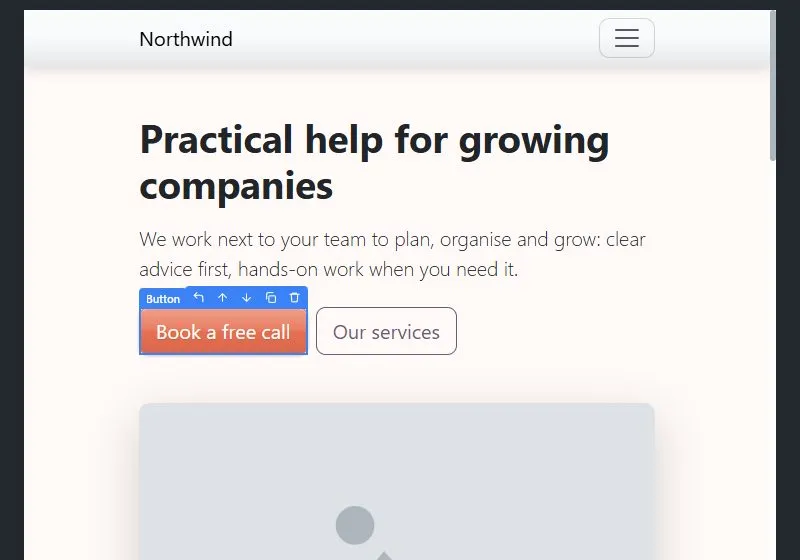
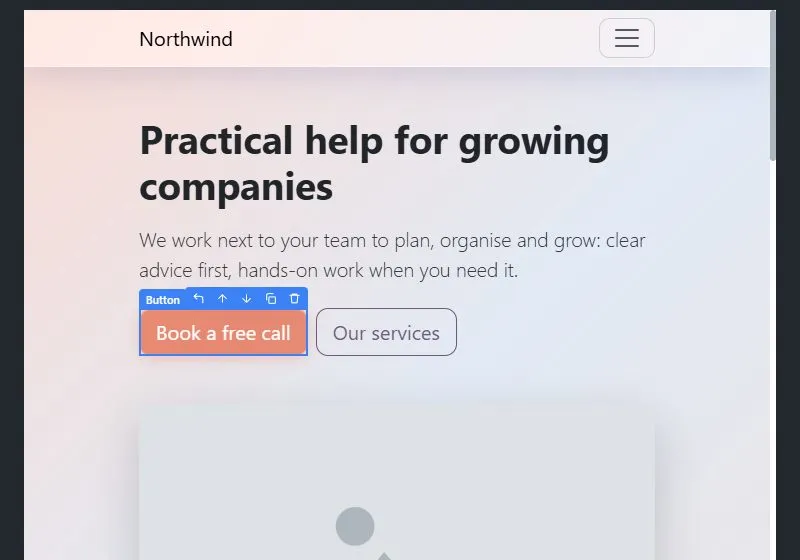
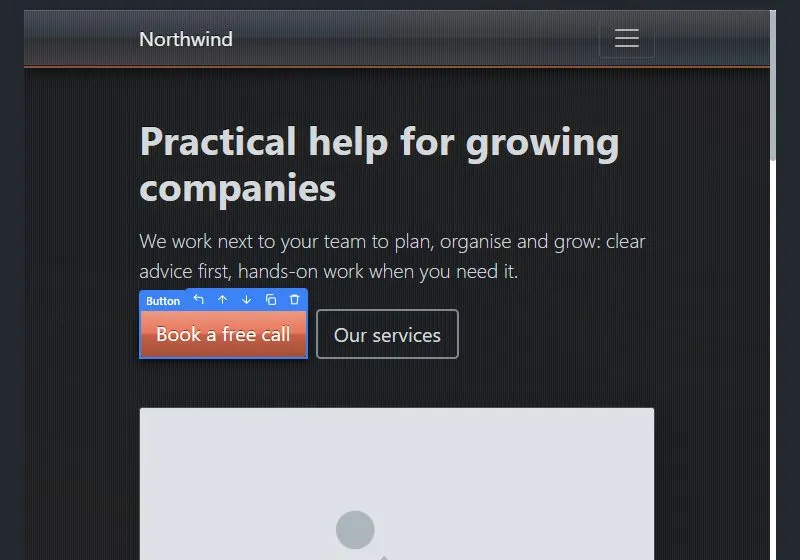
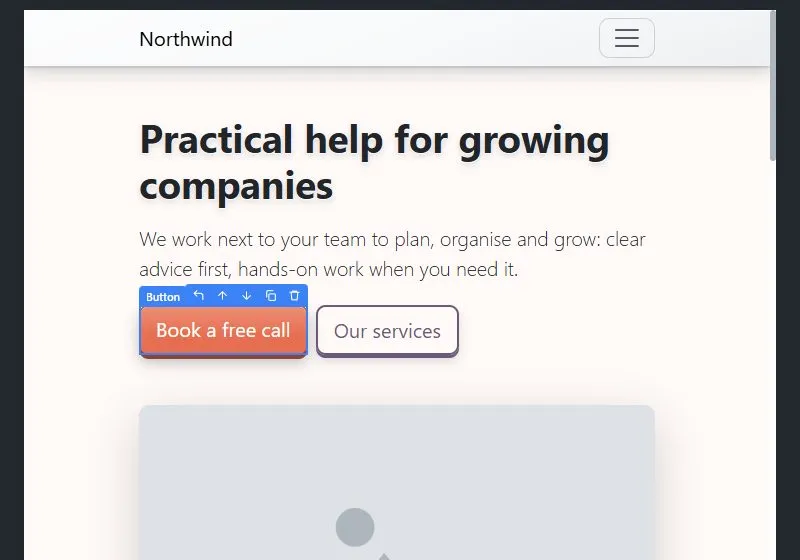
The chosen look is written to assets/css/look.css, loaded after Bootstrap and before your own CSS, so your CSS can still override it. All looks work in light and dark mode except Iron, which is always dark. You can read the generated CSS (read only) in the code editor's file list.
Fonts #
Open Site settings → Fonts.
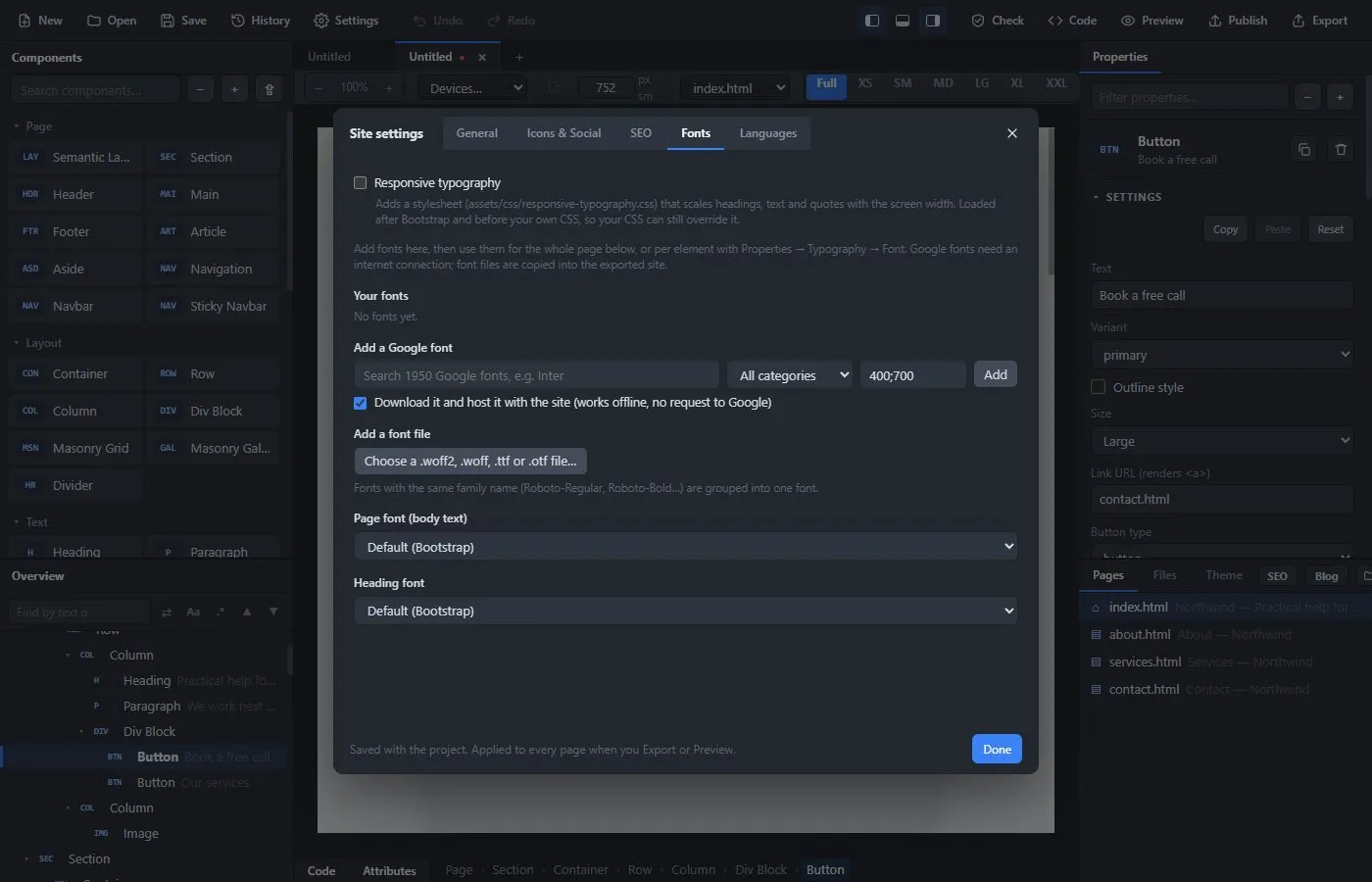
- Add a Google font: search about 1,950 Google fonts by name or category, choose the weights (for example
400;700) and press Add. With Download it and host it with the site ticked, the font files are saved with your site, so it works offline and does not ask Google's servers for anything. (Downloading needs the desktop app and an internet connection while you add it.) - Add a font file: choose
.woff2,.woff,.ttfor.otffiles (desktop app). Files with the same family name are grouped into one font. - Page font and Heading font use one of your fonts for the whole site.
- For one element, select it and choose a font under Properties → Typography → Family. Your fonts are listed there.
Text styling #
In the Properties panel, the Utilities → Typography section has the usual Bootstrap choices (size, weight, italic, alignment, case, decoration) and a few more:
- Text shadow: pick a preset such as Soft, Strong, Hard, Glow, Neon, Outline or Engraved, or tick Custom text shadow to choose the color, opacity, offset and blur yourself.
- Gradient text: fill the letters with a gradient. Pick a preset or choose a start color, an end color and an optional middle color, and set the direction. A custom shadow on gradient text is drawn as a drop shadow so it follows the letters.
Responsive typography #
Site settings → Fonts → Responsive typography adds a small stylesheet (assets/css/responsive-typography.css) that scales headings, text and quotes with the screen width, so big headings do not fill a phone screen.
Responsive design #
Every component is responsive by default. For finer control, use the Utilities in Properties together with the size chips (All, SM, MD, LG, XL, XXL): hide an element on phones, change the number of columns on tablets, or change the spacing from laptops and up. Use the size buttons above the page to check each size.