The editor
A tour of the window: the toolbar, the page, the panels, and the ways to move around.
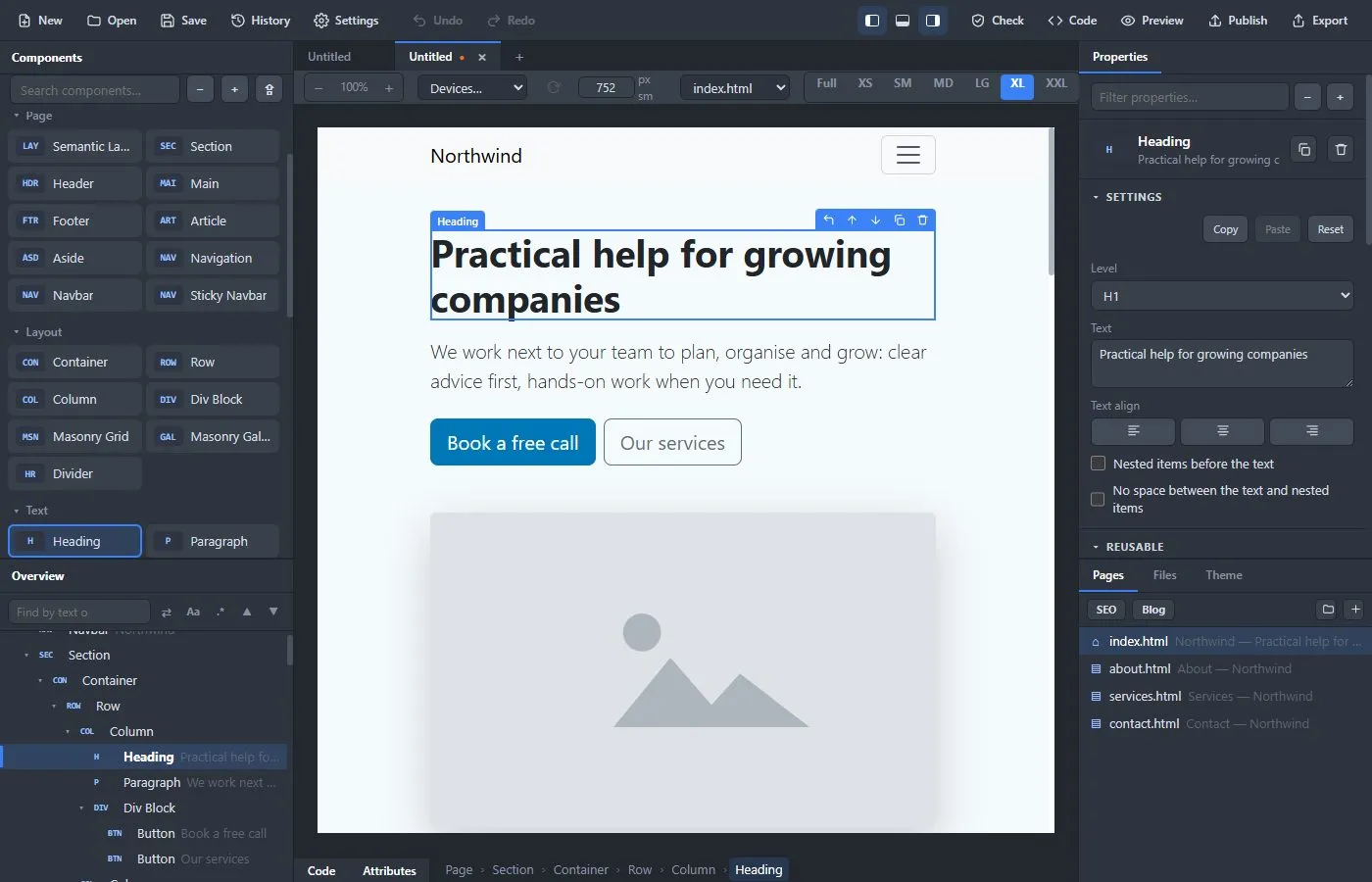
The window #
- Top bar: New, Open, Save, History and Settings on the left, Undo and Redo, three buttons that show or hide the left, bottom and right panels, and on the right Check, Code, Preview, Publish and Export.
- Tabs: every project you have open has a tab. Click + for a new one. Ctrl+Tab and Ctrl+Shift+Tab move between tabs, Ctrl+W closes one.
- Left: the Components list and the Overview tree.
- Middle: the page, with its controls above and the code panel and Breadcrumb below.
- Right: Properties at the top, and Pages, Files and Theme at the bottom.
You can hide the side panels with Alt+1 (left) and Alt+2 (right) to give the page more room.
The side panels can be resized. Drag the thin line between the two panels of a sidebar (for example between Components and Overview) up or down to give one of them more room, and drag the outer edge of a sidebar sideways to make it wider or narrower. Double-click a line to put it back. The sizes are remembered.
The dialog windows (Settings, the Theme builder, the Markdown editor and so on) can be resized too: drag any edge or corner. Double-click an edge to put the window back to its normal size. Each window remembers the size you gave it.
The page and its controls #
Above the page you find, from left to right:
- Zoom: −, the current zoom and +. You can also hold Ctrl and use the mouse wheel. Click the percentage to go back to 100%.
- Devices: show the page at the size of a real phone, tablet or laptop. The ⟳ button rotates the device.
- Width: type any width in pixels. The label next to it shows which Bootstrap size that is.
- Page: which page you are editing.
- Sizes: Full, XS (375), SM (576), MD (768), LG (992), XL (1200) and XXL (1400). These are Bootstrap's breakpoints.
The page is a live preview of your design. Menus and scripts do not run in it, so they never get in the way of editing. Use Preview to see the real behavior.
Selecting things #
Click anything on the page to select it. A blue box with its name shows what is selected, with a small toolbar to select the parent, move it up or down, duplicate it or delete it.
- Esc selects the parent of the selected element.
- The breadcrumb at the bottom (for example Page › Section › Container › Heading) shows where you are. Click any part of it to select that element.
- Delete removes the selected element, Ctrl+D duplicates it.
Editing text on the page #
Double-click any text (headings, paragraphs, buttons, links, labels) to edit it in place. Enter or a click outside keeps your change, Esc cancels.
The Overview #
The Overview shows everything on the page as a tree.
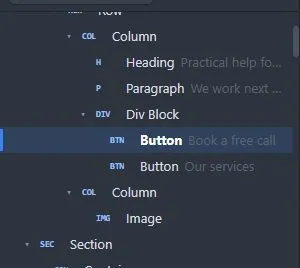
- Click a row to select it. Click the small arrow to open or close a branch.
- Drag a row to move it. An orange line shows where it will land, and the app only allows places where it makes sense: for example a column can only go inside a row.
- Right-click a row for Select the parent, Copy as HTML, Save as block…, Export as a block file…, Duplicate and Delete.
- Select several rows: Shift+click selects a range, Ctrl+click (Cmd+click on a Mac) adds or removes one. The Properties panel then shows what you can do with all of them at once: add classes to all (and click a class to take it off all; a class only some of them have is shown with how many), set or remove an attribute on all, Copy as HTML, Duplicate and Delete. Right-click one of the selected rows for the same actions, and Delete or Ctrl+D work on all of them. Click a row without a key to go back to one element.
- The box above the tree finds elements by their text or by a CSS selector (a class like
.card, an id like#hero, or any selector). Enter goes to the next match and Shift+Enter to the previous one. Aa matches case, .* treats what you type as a regular expression, and ▲ ▼ step through the matches. Ctrl+F jumps to this box. - ⇄ next to the box opens Find and replace in the whole project (Ctrl+Shift+F), described below.
The Components list #
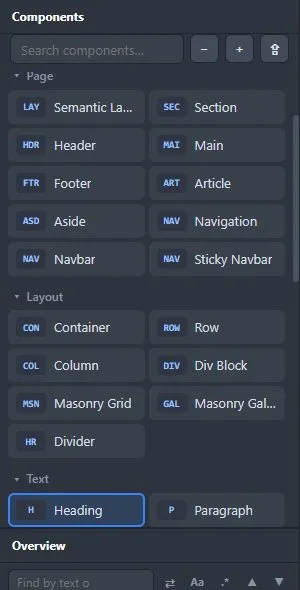
The list is grouped into Page, Layout, Text, Images & media, Buttons & navigation, Content, Overlays, Tables, Forms and Blocks. The next chapter, Components, describes them.
- The component you have selected on the page is marked in the list, so you can see which one it is and find its neighbors.
- A Suggested group at the top offers what usually comes next. Select a Row and it suggests a Column; select a Form and it suggests fields and a button; select the page itself and it suggests a Section, a Navbar and a Footer. Click a suggestion to add it.
- Type in the search box to filter the list.
- − and + close or open all the groups. ⇪ imports block files that someone shared with you.
Properties #
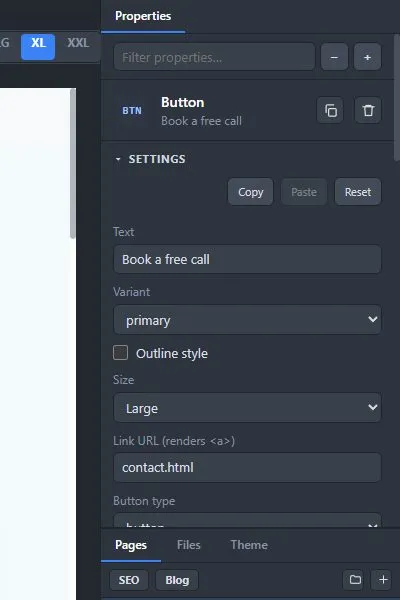
The right-hand panel shows the settings of the selected element. It has these parts:
- Settings: the options of that component (a heading has Level, Text and Text align; a button has Text, Variant, Size and a link). Some of these open a window of their own, such as Edit items…, which is described in the next chapter.
- Copy, Paste and Reset: every group of settings has these buttons. Copy remembers the settings of one component, Paste applies them to another component of the same kind, and Reset puts them back to the defaults. Texts, links and pictures are never copied or reset.
- Classes: the Bootstrap and your own CSS classes of the element.
- Utilities: Bootstrap's utility classes as menus, grouped into Layout, Margin, Padding, Flexbox, Grid, Sizing, Position, Typography, Colors, Borders and Effects. The All / SM / MD / LG / XL / XXL chips switch between "at every size" and "from this size and up", so you can, for example, hide something on phones only.
- Animation: make an element fade, slide or zoom in as it scrolls into view.
- Filter properties: the box at the top finds a setting by name. − and + close and open all the sections.
The Attributes button at the bottom opens a strip with the selected element's id, classes and extra HTML attributes next to its opening tag. Use Edit attributes… to add things like aria-label or data- attributes.
Pages #
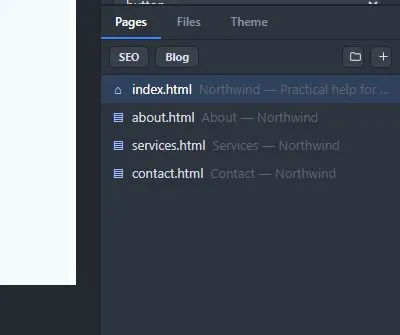
The Pages tab lists the pages of the site. The first page, with the house icon, is the home page.
- A row of buttons sits above the list: SEO and Blog on the left, and on the right a folder button and +. + adds a page. The folder button adds a folder, and you can drag pages into it. You can also type a name like
blog/my-postwhen you rename a page, to put it in a folder. - Double-click a name to rename the page. The links that point to it are updated.
- Each row has buttons to rename, move up, duplicate and delete (you are asked first, and delete can be undone). You can also drag pages to put them in a different order.
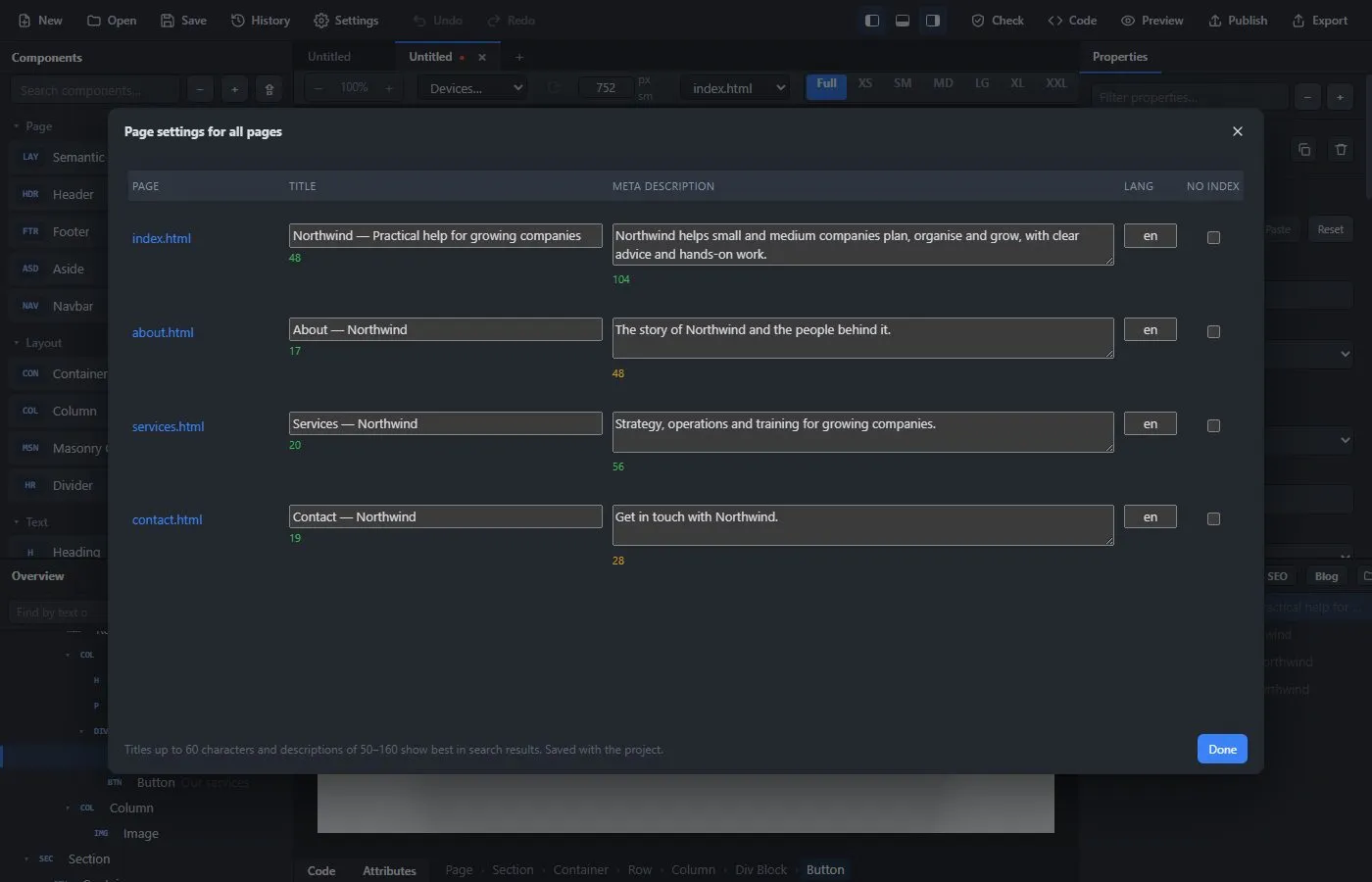
- SEO (the first button in that row) opens the titles, descriptions and the "noindex" setting of all pages in one table (also File → Site → Page Settings for All Pages…).
- Blog adds a blog: see Blogs.
Each page has its own title, description, language and color mode. Select the page itself (the top row of the Overview) to change them in Properties.
Undo and version history #
Ctrl+Z undoes and Ctrl+Y redoes. Typing in a field is merged into one step, so you do not have to undo every letter.
For bigger safety nets there is History (File → Version History…).
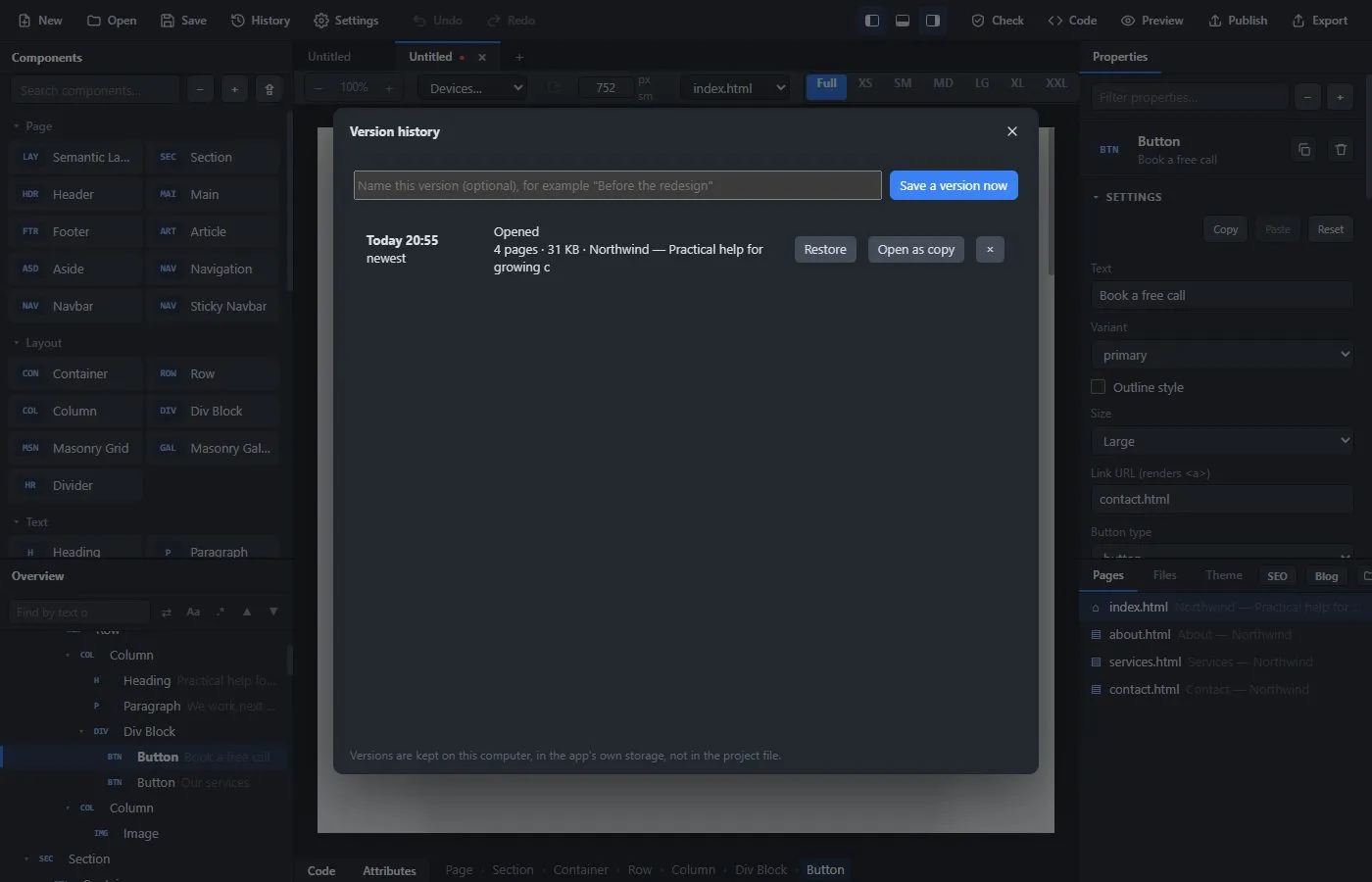
The app saves versions for you: whenever you save, when a project is opened, and while you work (at most every two minutes, and only if something changed). You can also type a name and choose Save a version now, for example "Before the redesign". For each version you can Restore it, Open as copy in a new tab, or remove it. Versions are kept on your computer in the app's own storage, not in the project file.
Find and replace in the project #
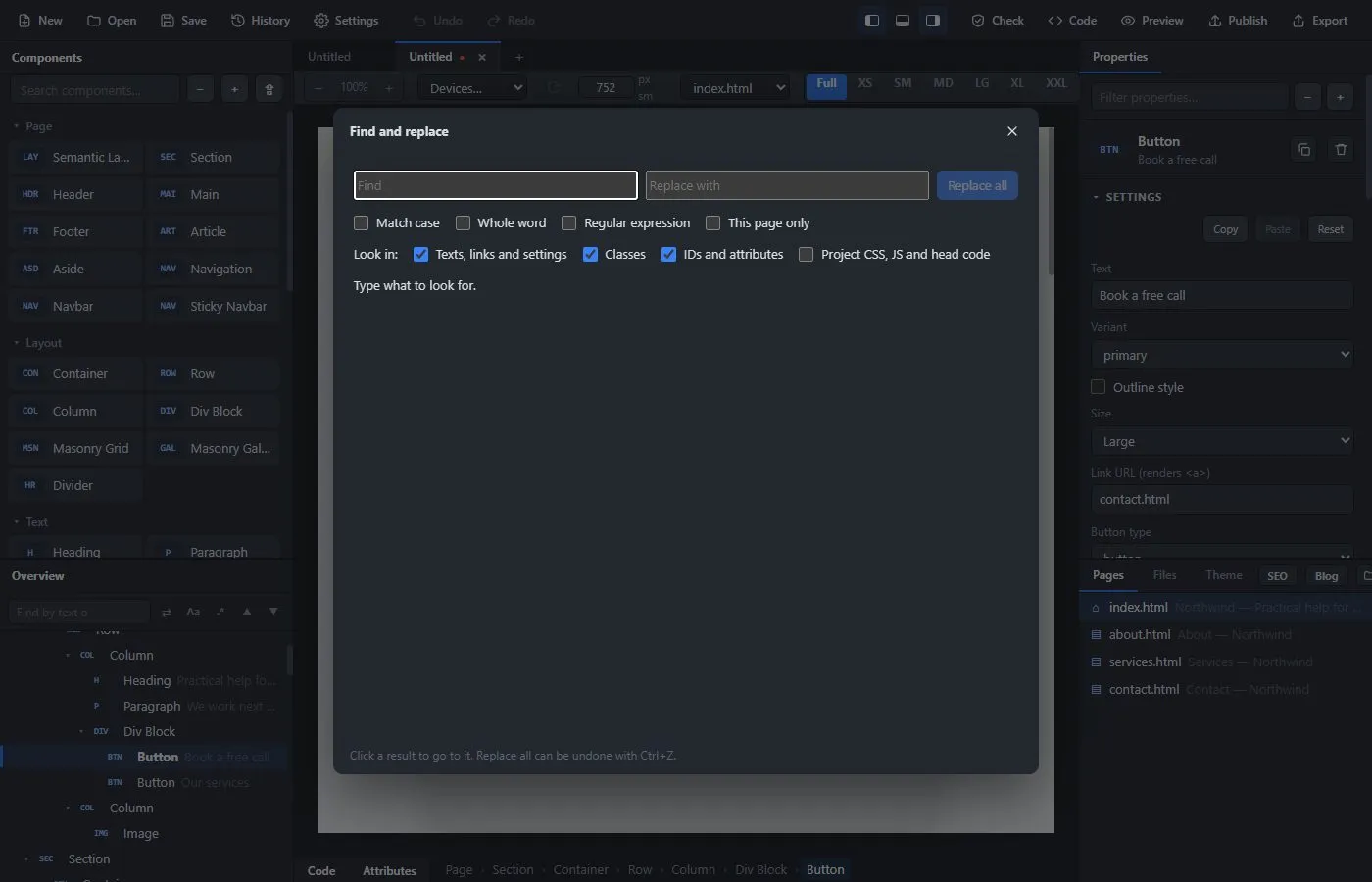
Edit → Find and Replace in Project… (Ctrl+Shift+F) searches the texts of the whole site, not just the open page, and can replace them everywhere.
Several projects at once #
Each project opens in its own tab. A dot on a tab means it has changes you have not saved yet. Closing a tab asks before it throws away unsaved changes.
Working with a second screen #
The code panel can be moved into a window of its own, so you can keep the page on one screen and the code on another. See Code.