Check, export and publish
Find mistakes before your visitors do, then get the finished site onto the internet.
Site settings #
Before you publish, fill in the Site settings (File → Site → Site Settings…, Ctrl+,). They are saved with the project and apply to every page.
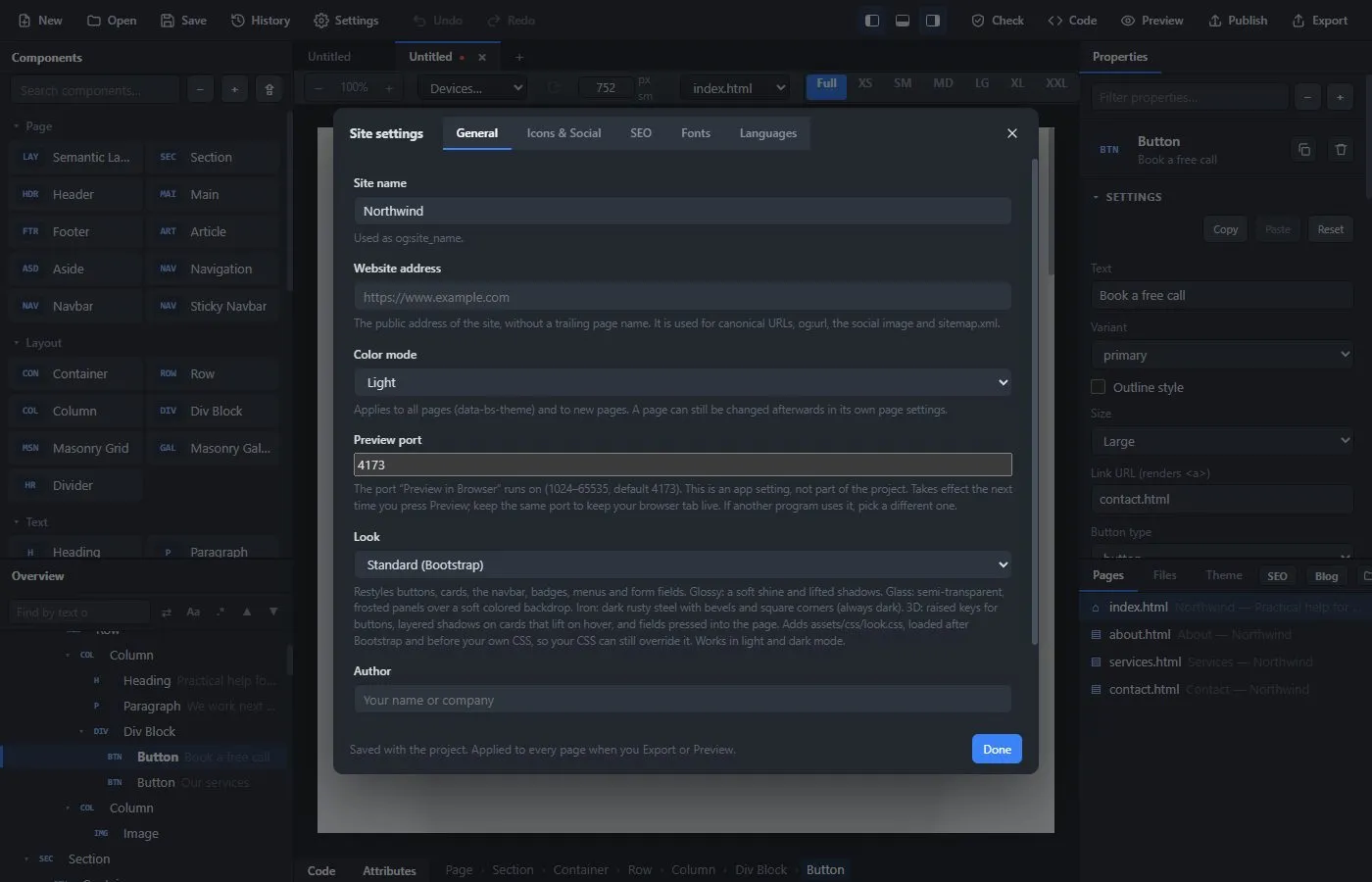
- General: the site name, the website address (for example
https://www.example.com, used for canonical addresses, the social image, the sitemap and the RSS feed), the color mode, the preview port, the look, and your name as the author. - Icons & Social: the favicon (the small icon in the browser tab). A PNG or JPG of at least 512×512 is best; the export then also makes
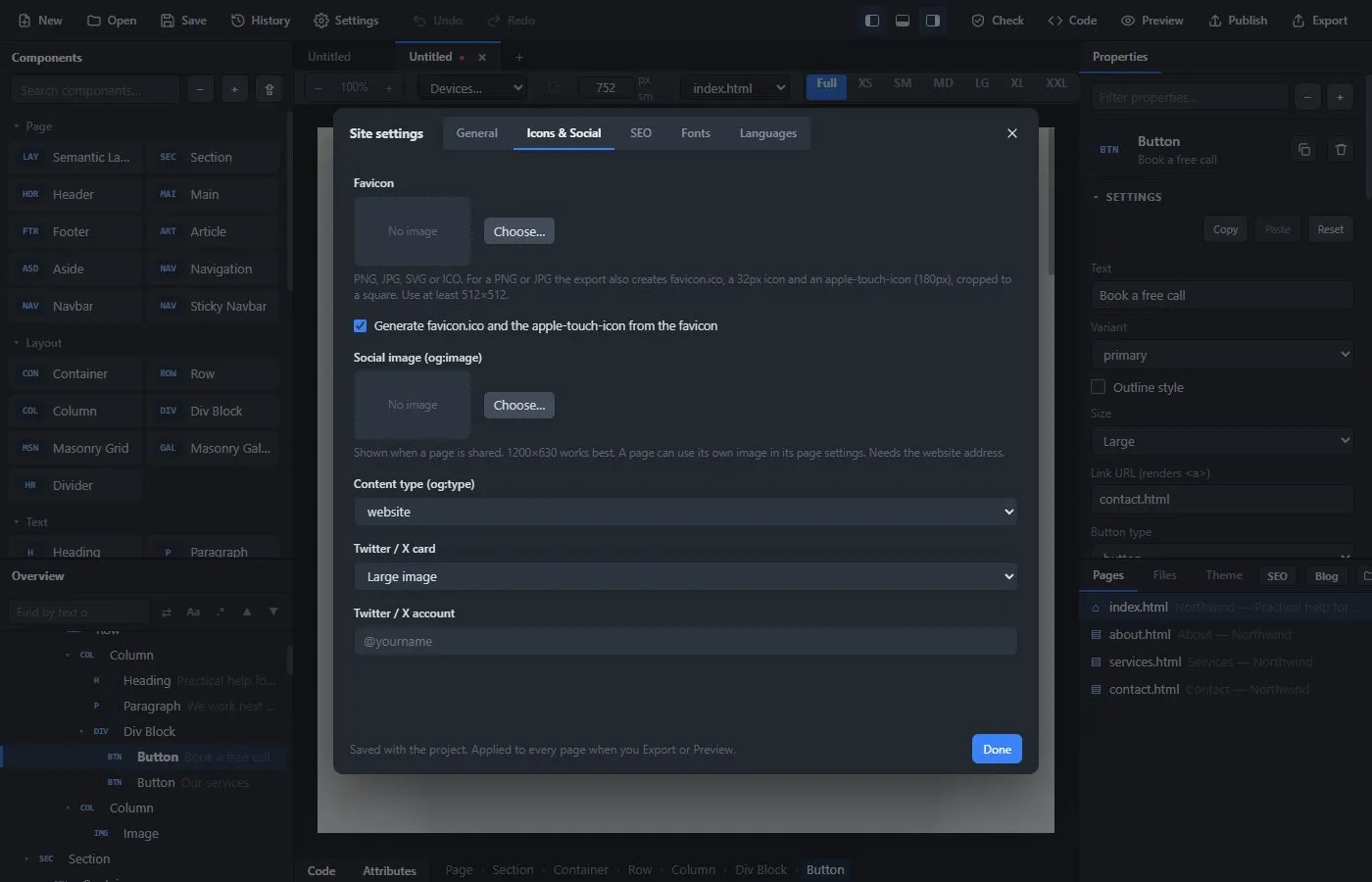
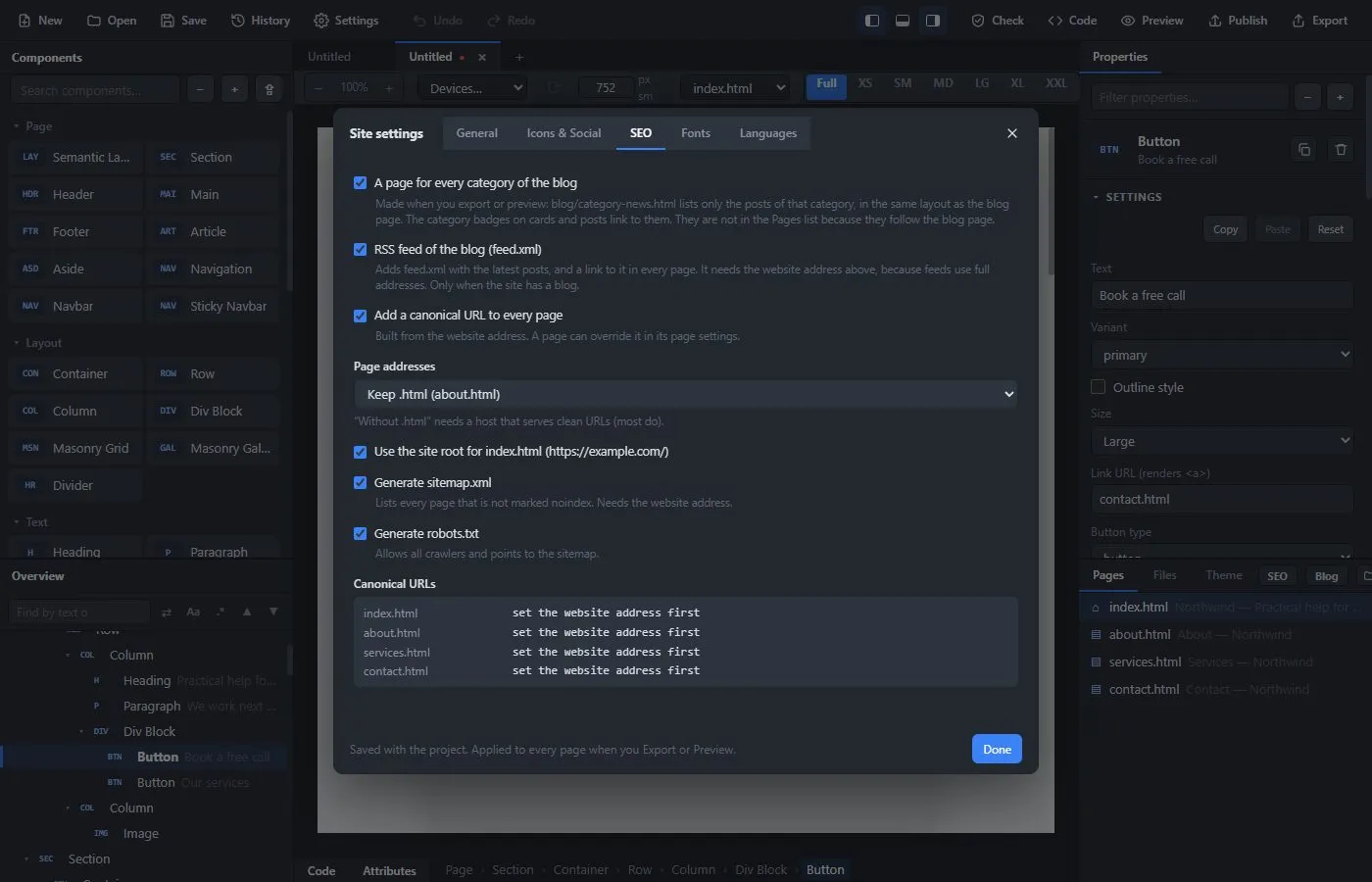
favicon.ico, a 32-pixel icon and anapple-touch-icon. Also the social image shown when a page is shared (1200×630 works best), the content type and the Twitter / X card. - SEO: a canonical address on every page, whether page addresses keep
.htmlor not, using the site root forindex.html, asitemap.xml, arobots.txt, a page for every blog category and an RSS feed. - Fonts and Languages: see Design and Languages.
Each page also has its own settings: select the page (the top row of the Overview) to set its title, description, language, color mode and background (a color, your own color or a gradient, with the text color to match) and Keep the footer at the bottom of the window on short pages (the Semantic Layout block does this by itself). Every page should also have a main area, which Lighthouse and screen readers look for: the starter sites have one, Check warns about a page without one, and Wrap the content inon the page settings puts everything between the navbar and the footer into one, and under SEO & Social things like noindex and its own social image. SEO in the Pages list shows the titles, descriptions and noindex of all pages in one table.
Check the site #
Press Check (Ctrl+Shift+K). The app reads every page and lists what could be better. Nothing is changed by the check.
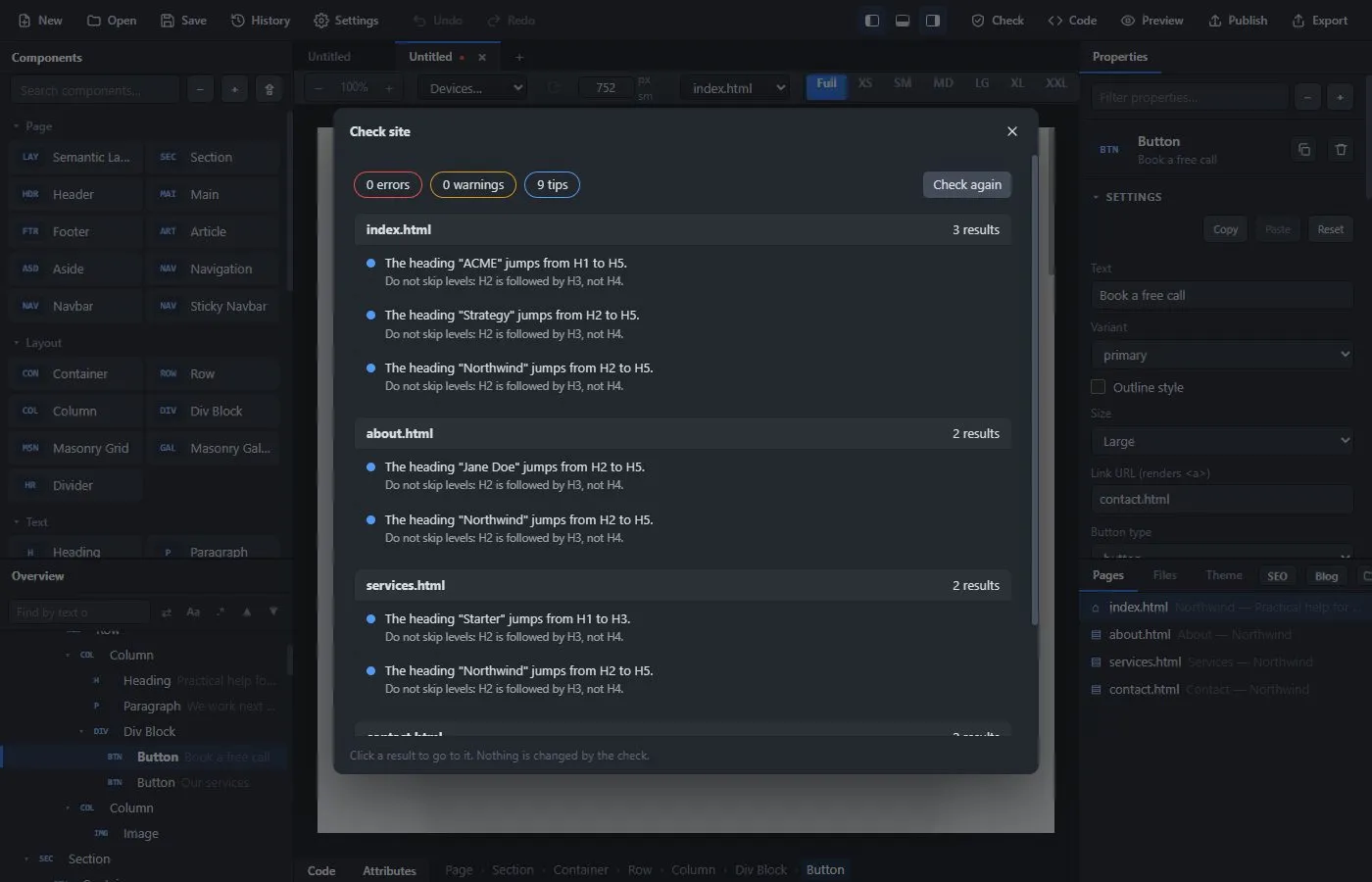
Results come in three kinds: errors (things that are broken), warnings (things that should be fixed) and tips. Click a result to go straight to the page and the element. The check looks for:
- Pages: no title, a very long title or description, no description, no language set, the same title on two pages, and pages that no other page links to.
- Headings: no main heading (H1), more than one, empty headings, and skipped levels (an H2 followed by an H4).
- Pictures: an image without alt text or without a source, and frames without a title.
- Links: empty links, links without an address, links to a page or an anchor that does not exist, and the same id used twice.
- Forms and buttons: a field without a label, and a button without text.
- Translations: pages that are not translated yet and texts still in the original language.
Fix what you can, and press Check again.
Preview #
Press Preview (F5). The page opens in your normal browser, served from a small local server on your own computer (by default the address http://127.0.0.1:4173). It updates by itself as you edit and follows you when you switch pages. Scripts and Bootstrap's menus work there as on the finished site.
The app always uses the same browser tab, so you do not collect a new tab each time. The port is an app setting, not part of the project: change it under Site settings → General if another program uses it.
Export #
Press Export (Ctrl+E) and choose a folder. The app writes the finished site there:
index.html, about.html, …      one file per page (pages in folders keep their folders)
assets/bootstrap/…             Bootstrap's CSS and JavaScript
assets/css/styles.css          your own CSS (plus theme, style, look and other stylesheets when used)
assets/js/…                    your scripts
assets/img/…                   your pictures
assets/fonts/…                 fonts you added
sitemap.xml, robots.txt        when switched on in the site settings
feed.xml                       the blog feed, when switched on
favicon files when you set a faviconThe result is plain HTML, CSS and JavaScript. There is nothing to install on the server: upload the folder to any web host. In the web demo, Export downloads a .zip of the same files.
Export options #
The Files tab has an Export section with options that only apply to Export, never to Preview:
- Minify HTML, CSS and JavaScript makes the files smaller.
- Merge plain scripts into one file joins scripts that load on the same pages into one
bundle.js. - Convert images to WebP (on by default in a new project) shrinks large PNG and JPEG images and saves them as WebP when that makes them smaller. You choose the Quality and a Max width in pixels. Your project and the preview keep the original pictures. Use Optimize images… to see every picture with its size afterwards and leave single pictures out.
Publish to your server #
Publish (Ctrl+Shift+U) uploads the site straight to your web server from inside the desktop app. It is the same files as Export, sent over SFTP (secure, recommended), FTP or FTPS.
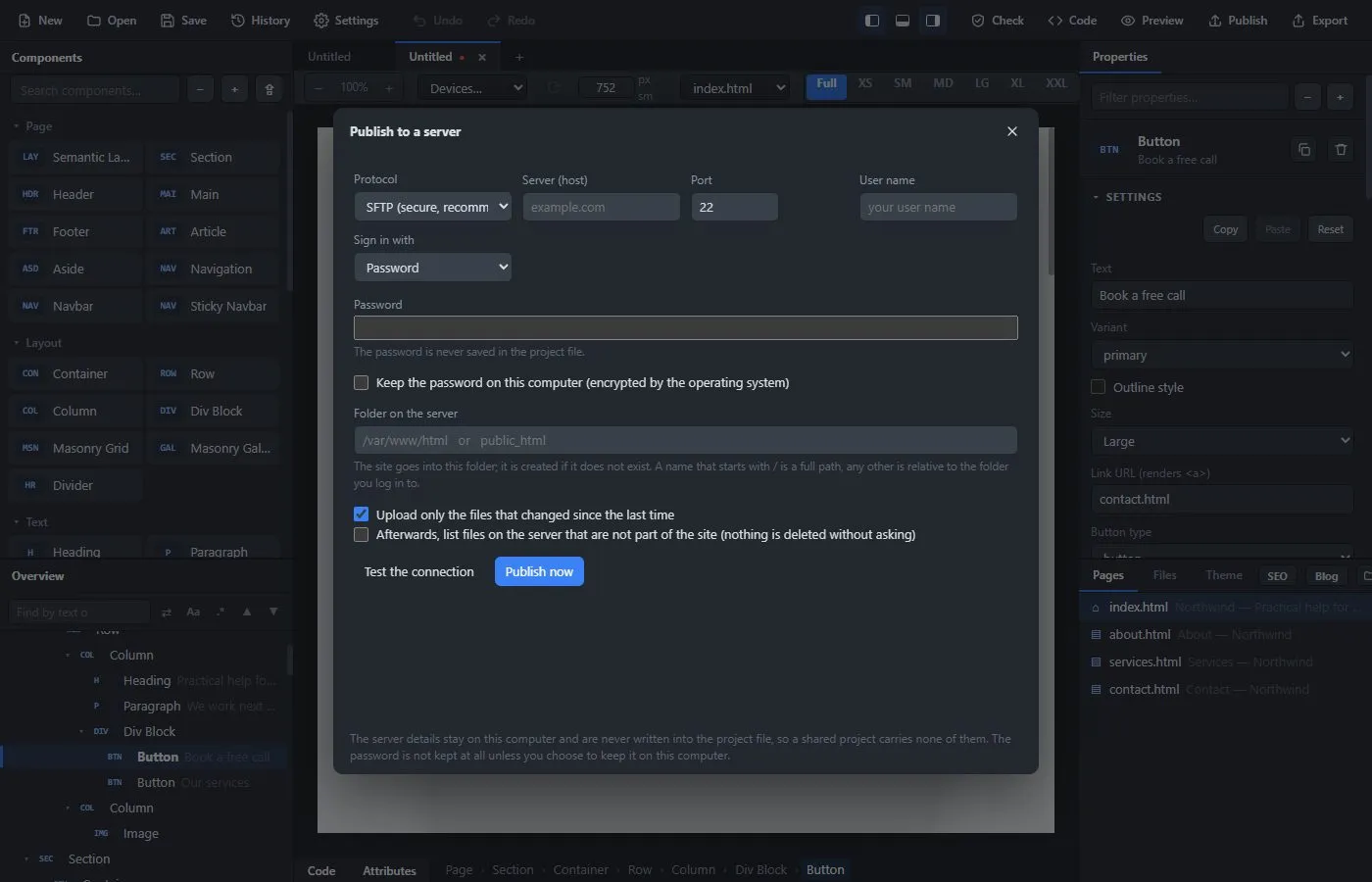
- Choose the Protocol and fill in the Server (host), the Port and your User name.
- Choose how to sign in: with a password, or with a private key.
- Fill in the Folder on the server, for example
/var/www/htmlorpublic_html. It is created if it does not exist. A name that starts with/is a full path; any other name is relative to the folder you log in to. - Press Test the connection, then Publish now.
Two options help on later uploads: Upload only the files that changed since the last time, and Afterwards, list files on the server that are not part of the site. The list is only shown to you: nothing is deleted without asking.
The first time you connect with SFTP the app shows the server's fingerprint and asks you to trust it.
Your login details stay on your computer. The server, the user name and the other publish settings are kept in the app, per project, and are never written into the .bsb file, so you can share a project without sharing your server. The password is not kept at all unless you tick Keep the password on this computer, and then it is stored encrypted by your operating system.
Saved servers. To avoid typing the same server in every project, fill in the server and press Save this server… at the top of the window and give it a name, for example the name of the website. In any project you then choose it from Saved servers (the list is in A to Z order by name), and the connection (protocol, server, port, user name and sign-in method) is filled in. A new project starts with the server you used last. The folder on the server is not saved with it: set it for every project, so two projects never end up in the same folder. If you ticked Keep the password on this computer, the saved password is used for that server in every project. Remove from the list forgets a saved server (a kept password is removed with Forget it).
Putting it online without Publish #
Any host that serves static files will do. Upload the exported folder with the host's file manager, with an FTP program, or with the host's own tools. Because the export is plain files, there is nothing to configure on the server.