Blogs
Add a blog with categories, search and page numbers, write posts in Markdown, or build a blog from an API.
A blog in this app is made of normal pages and components, so you can edit and style it like the rest of the site. It is not a separate system you have to learn.
Add a blog #
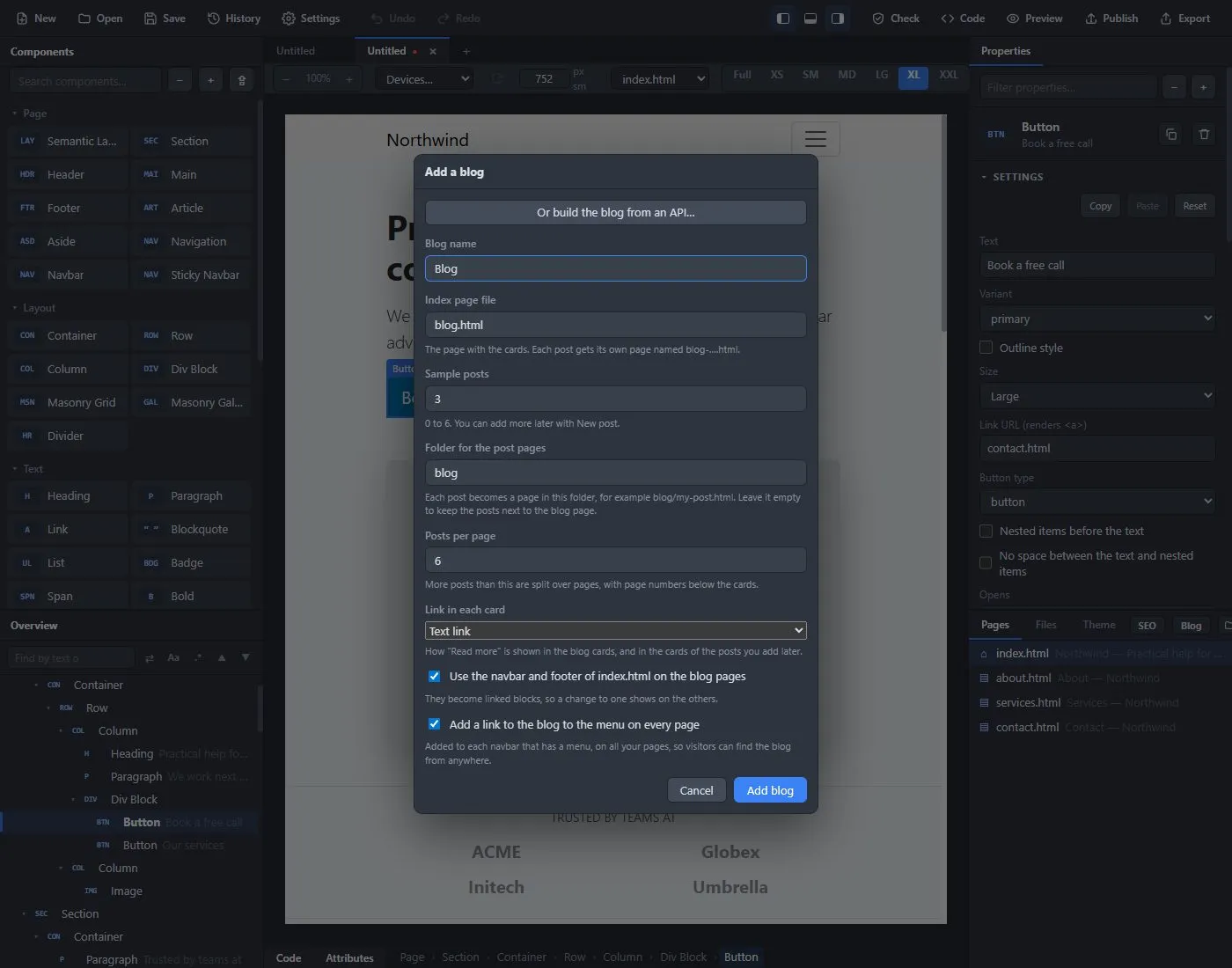
Press Blog in the Pages list (it says + Post once the site has a blog). The Add a blog window asks for:
- Blog name and the index page file, the page with the cards (for example
blog.html). - Sample posts: how many example posts to start with, from 0 to 6. You can write your own later.
- Folder for the post pages: each post becomes a page in this folder, for example
blog/my-post.html. Leave it empty to keep the posts next to the blog page. - Posts per page: more posts than this are split over pages, with page numbers below the cards.
- Link in each card: whether the "Read more" in each card is a text link or a button, and the button's style.
- Use the navbar and footer of your home page on the blog pages. They become linked blocks, so a change to one shows on the others.
- Add a link to the blog to the menu on every page.
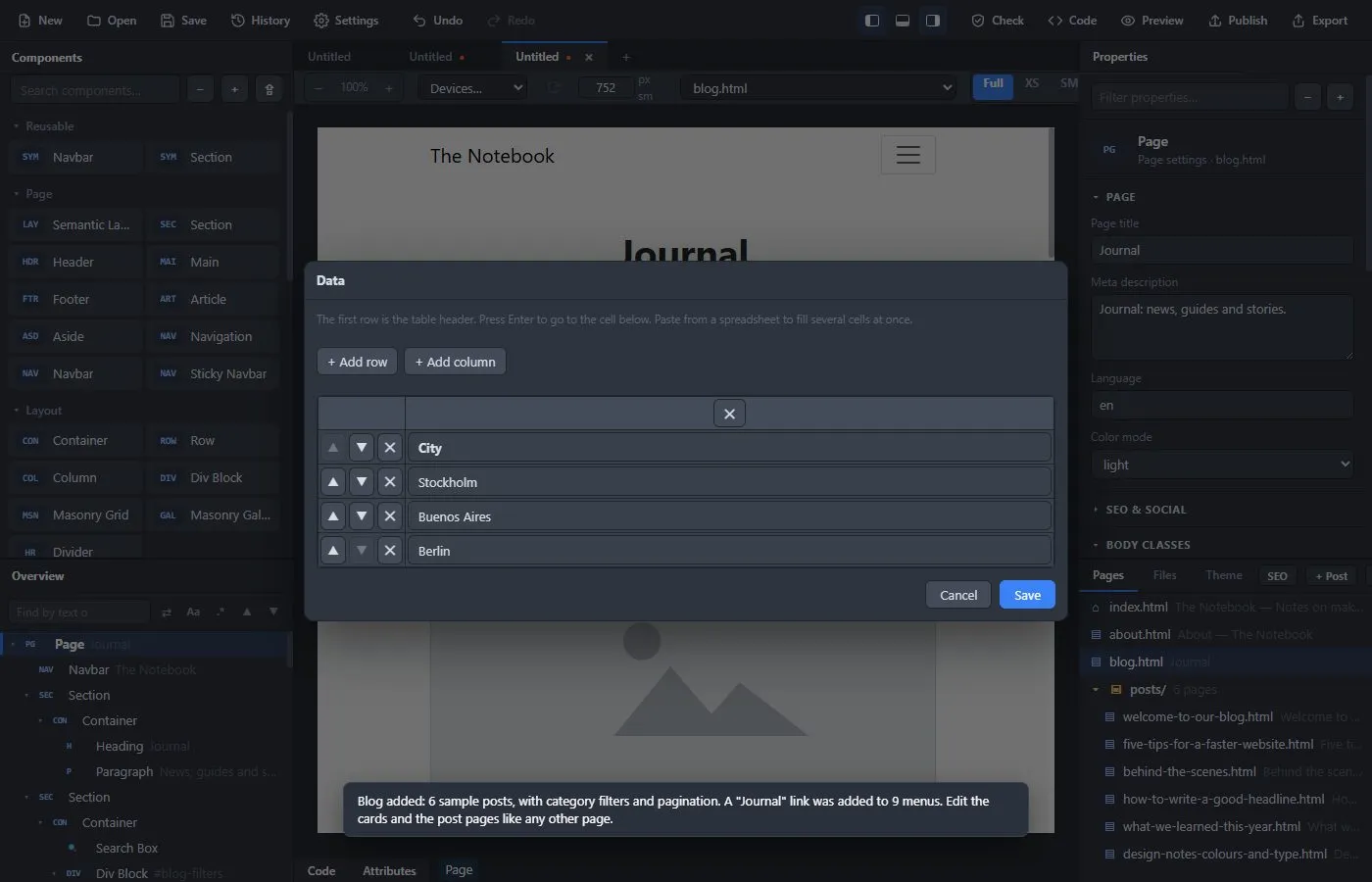
The blog page gets a search box, a button for every category, the cards and the page numbers. They work on the finished site without any setup. Each post is a page with a heading, the date, a category badge, a picture, a short summary and the text. The page numbers are real pagination: only the cards of the page you are on are in the page, and the others are put in when their page is opened, so a blog with many posts stays quick. A blog with more than 100 posts goes one step further: when you export, the page keeps only its first page of cards and the other posts are written to a file, assets/blog-posts.json, that the page fetches once (the page numbers, categories and search work the same). The first page is in the HTML for search engines and visitors without JavaScript; the other posts are still found through the sitemap, the feed and the category pages. Opening the exported blog straight from the disk (file://) shows only the first page; on a web server it is complete. The list of page numbers stays short too (the first and last page, the pages around the current one, and "…").
Write a post #
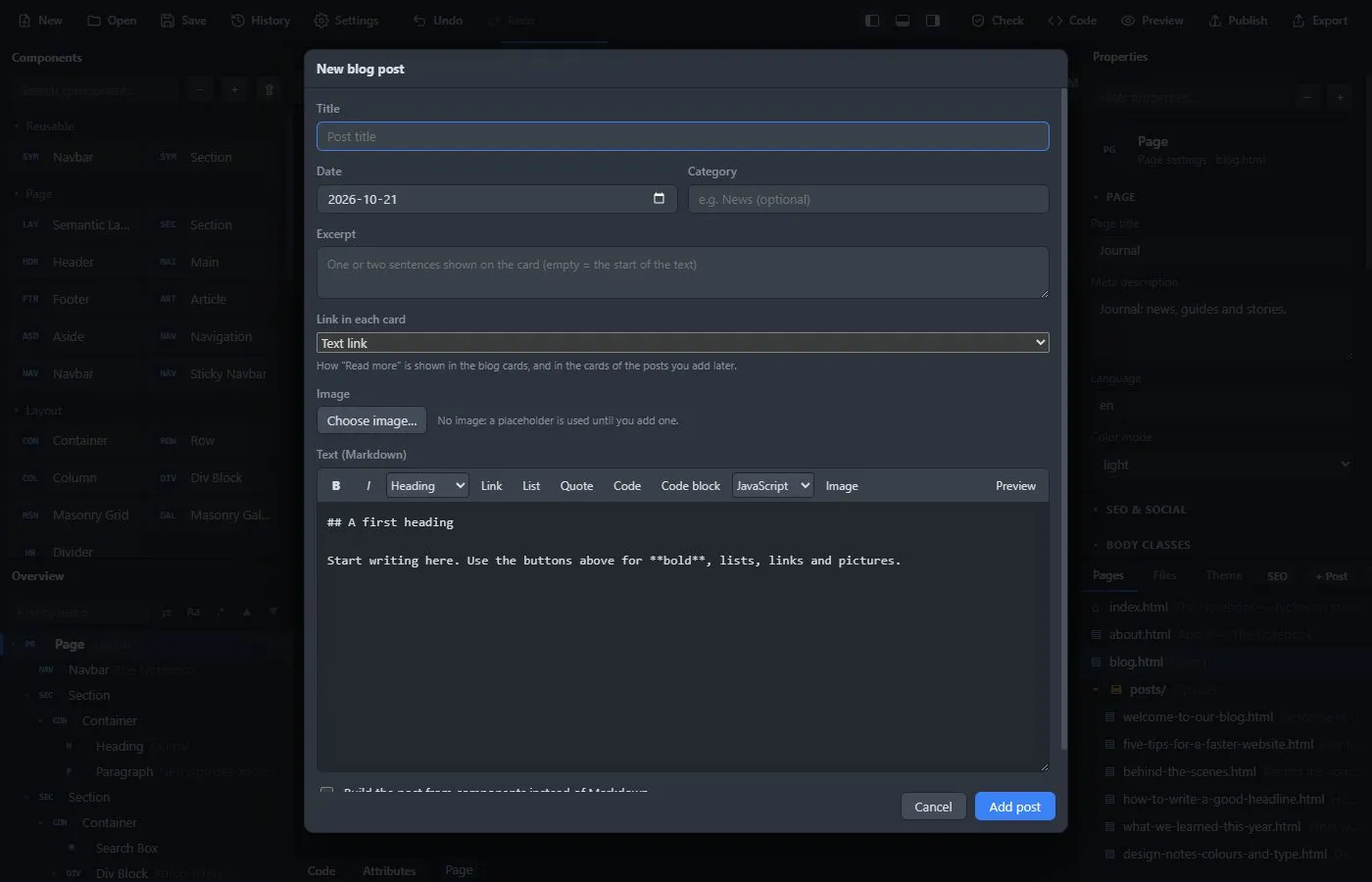
Press + Post. The New blog post window asks for:
- Title, Date and Category (optional; a new category gets its own filter button).
- Author (optional). It starts as the author in Site settings, and is shown after the date on the post page and as the author of the post in the RSS feed.
- Excerpt: the short text shown on the card. If you leave it empty, the start of the post is used.
- Link in each card: the style of "Read more" for this post. It becomes the choice for the posts you add later, and the category buttons take the same color. With a text link, the category buttons are outlined in the page's own text color (dark on a light page, light on a dark one), so they are readable in both modes; the chosen one is filled.
- Image: the picture for the card and the top of the post.
- Text: written in Markdown, with buttons for bold, italic, headings (a Heading menu from H1 to H6), links, lists, quotes, tables, code, code blocks and pictures, and a Preview. Or tick Build the post from components instead of Markdown for posts with cards, galleries or other layout.
The post page is created, and a card for it is added at the top of the blog page. Newest posts come first. If a post has no picture, a placeholder is shown until you add one.
Categories, the feed and tag pages #
Edit the categories. Choose File → Blog → Edit Blog Categories…, or press Edit the categories of the blog… in the + Post window. Every category is listed with its number of posts. Type a new name to rename it; give two categories the same name to merge them; ✕ Delete takes a category away from its posts (the posts stay). Apply changes the cards, the badges on the cards and on the post pages, and the filter buttons in one step, and Undo takes it all back. For a blog made from an API, a later Update from the API may bring the old category back for posts you did not edit.
In Site settings → SEO you can switch on:
- A page for every category of the blog. It is made when you export, for example
blog/category-news.html, and lists only the posts of that category. The category badges on cards and posts link to it. - RSS feed of the blog (
feed.xml). A feed with the latest posts, plus a link to it in every page. This needs the website address to be filled in, because feeds use full addresses.
Import a Markdown blog #
If you already have a blog made of Markdown files (an Astro, Hugo or Jekyll site, or any folder of .md and .mdx files with front matter), you can bring it in. Choose File → Import → Markdown Blog…, or Blog in the Pages panel and then Or import a Markdown blog….
- Press Choose the folder with the posts… and pick the folder that holds the files. For an Astro blog that is
src/content/blog. Sub-folders are read too, and the usual extra files (README, LICENSE and so on) are skipped. If the folder has sub-folders (a documentation site such as Starlight has one per section), two options appear: Keep the sub-folders gives a post incss-tutorial/layoutthe pageblog/css-tutorial/layout/name.html, so files with the same name in different folders do not collide, and Use the first sub-folder as the category of a post without tags makes each section a filter button. - The window tells you how many posts it found, the categories, and anything it could not use.
- Set the blog name, the blog page, the folder for the post pages and the number of posts per page, then press Import the posts.
The front matter at the top of each file (the settings between two --- lines, or +++ for Hugo) fills in the card and the post page:
| Front matter | Becomes |
|---|---|
title | the title |
pubDate, date, published | the date (the post cards are sorted newest first) |
description, excerpt, summary | the summary on the card (if there is none, the start of the text) |
tags, categories | the categories, so the filter buttons work; a post can have several |
author | the author shown after the date |
heroImage, image, cover, thumbnail | the picture of the card and the post |
slug (or the file name) | the name of the post page, for example blog/array-filter.html |
draft: true | left out, unless you tick Include drafts |
The pictures are found on the computer where they are, also when they are named with a path like ../../assets/photo.webp or /images/photo.png (the site's public folder), and they are copied into the exported site like any other picture. Pictures inside the text are handled the same way. If the text starts with its own heading (# Title), the headings in the post are moved down one level, because the post page already has the title as its main heading. MDX files are imported as Markdown: the import lines are removed and components are left out. In the web version, only pictures inside the folder you choose can be used.
The result is an ordinary blog, with posts as normal pages you can edit. It is a one-time import, not a link to the files: if you keep writing in the original folder, import again into a new project, or add the new posts here with + Post.
Build a blog from an API #
If your articles live somewhere else, for example in your own content system, you can build the blog from a web address that answers with JSON. Press Blog, then Or build the blog from an API….
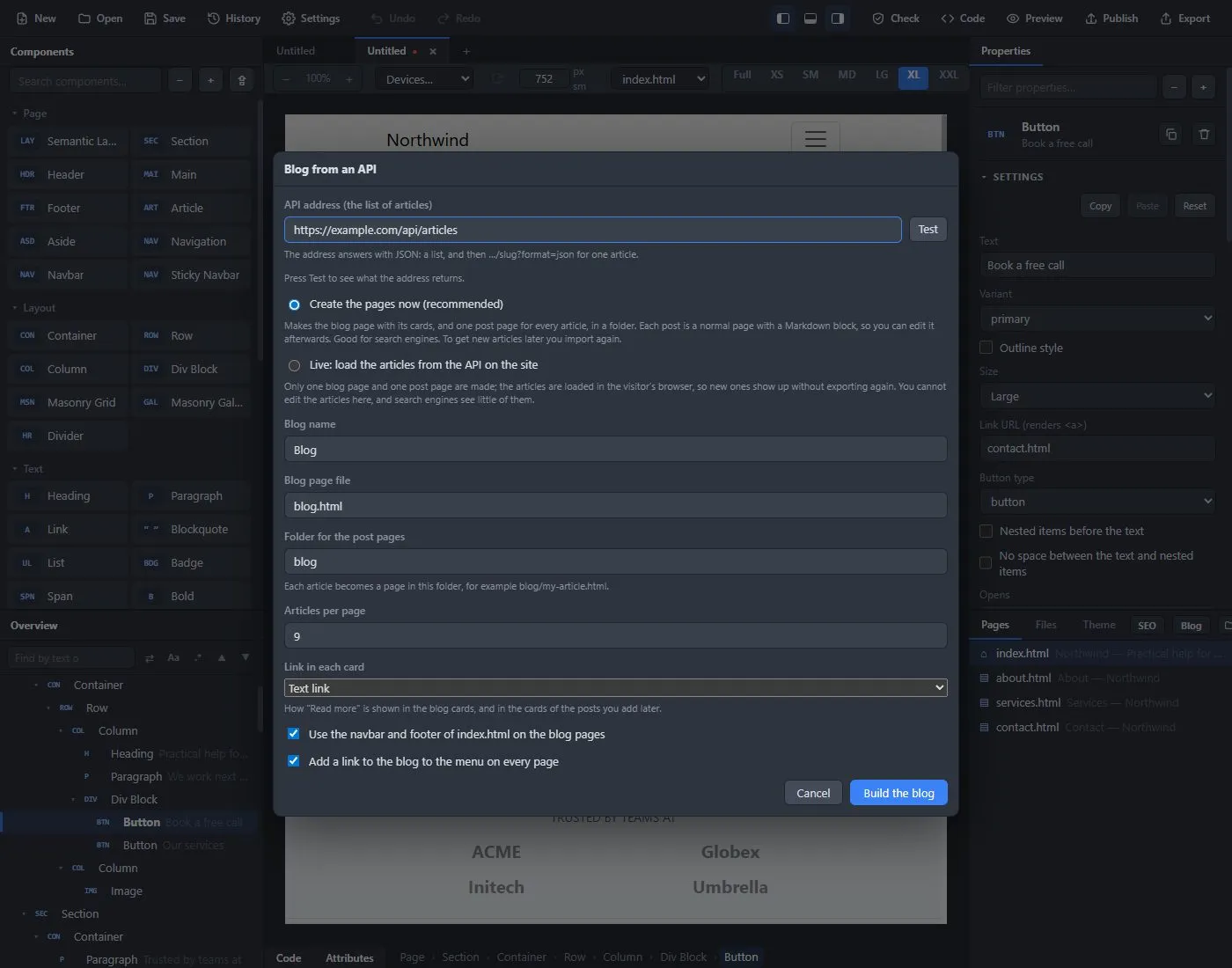
- Enter the API address (the list of articles) and press Test. The app tells you how many articles it found and in which categories.
- Choose how to build it:
- Create the pages now (recommended): every article is fetched and becomes a normal post page with a Markdown block, in a folder. You can edit the pages afterwards, and search engines read them well.
- Live: only one blog page and one post page are made, and the articles are loaded in the visitor's browser. New articles show up without exporting again, but you cannot edit them here and search engines see less of them.
- Fill in the blog name, the file names, the folder, articles per page, the link style and whether to share your navbar and footer.
The API must return a list of articles, each with a slug and a title, and for one article a content in Markdown. Because the browser asks the API directly in Live mode, the API must allow it (CORS).
Update from the API. For a blog that was made by importing, choose File → Blog → Update Blog from API…, or open the + Post window and press Update the posts from the API…. If the project has no blog, or the blog was not made from an API, the app tells you so. The app fetches the articles again and shows what is new, what changed and what was removed. Then it brings the blog up to date.
Good to know #
- The app does not run a server for the blog. Everything is static files, so it works on any web host.
- A blog can be translated like the rest of the site, but posts are not yet kept as separate blogs per language.
- The blog starter template (File → New → New from Template → Blog) gives you a finished personal blog with sample posts in one step.