Code
Write your own CSS and JavaScript, edit HTML, and see exactly what the app generates.
You never have to write code to use the app. But when you want to, there is a full code editor built in (the same one that powers Visual Studio Code), and nothing is hidden from you.
The code panel #
Click Code at the bottom of the window, or press Ctrl+J, to open the code panel under the page. Drag its top edge to resize it, or press ⤢ (Ctrl+Shift+J) to make it fill the window. Ctrl+J closes it again.
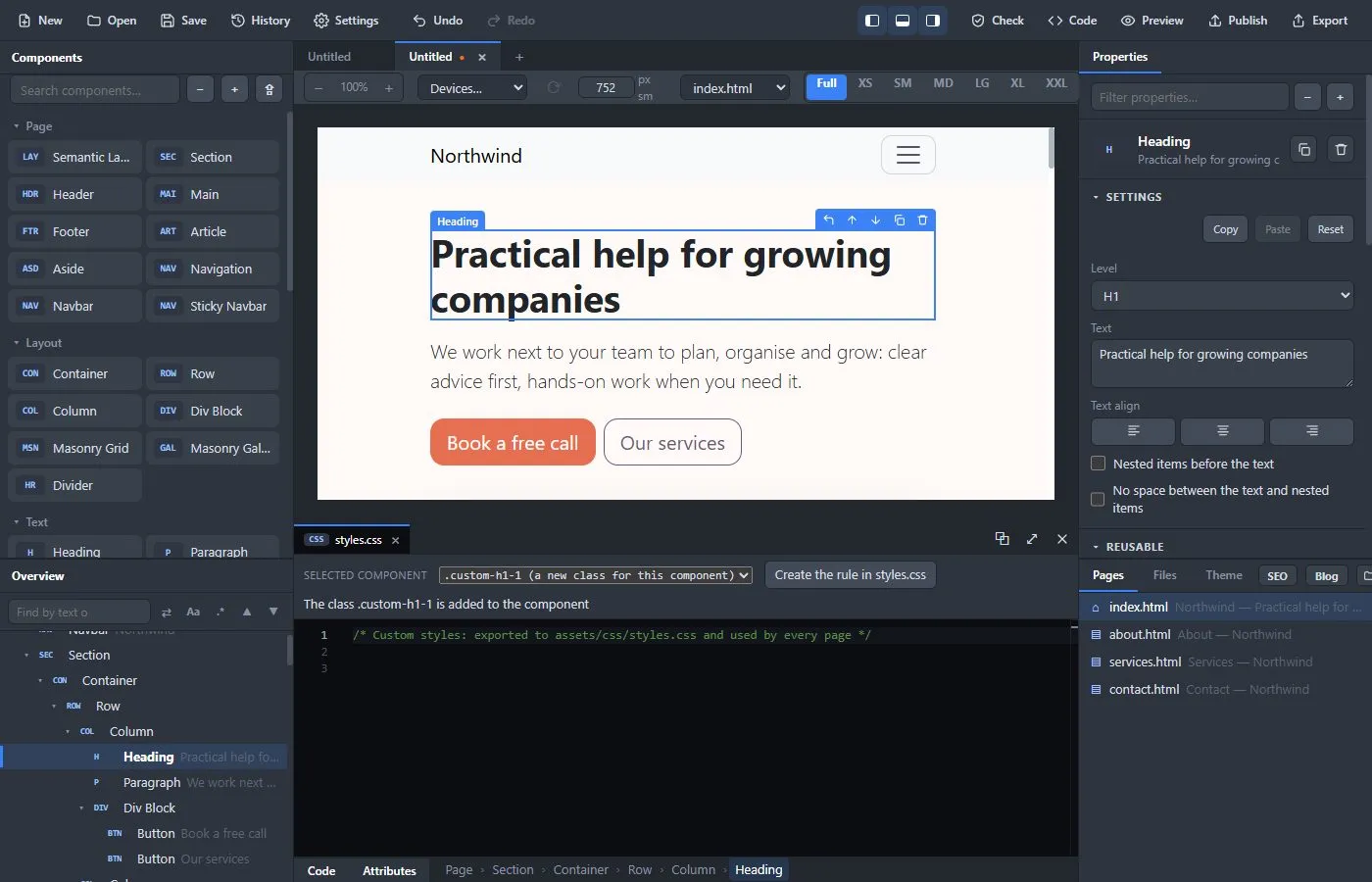
The tabs at the top of the panel are the files you have open. Open a file from the Files tab in the sidebar.
The Files tab #
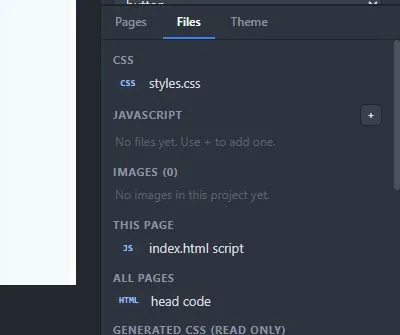
The Files tab lists everything the project holds:
- CSS:
styles.css, your own stylesheet, shared by all pages. It is applied live to the page and exported toassets/css/styles.css. Atheme.cssappears here too when the project has one. - JavaScript: a global
script.js(loaded after Bootstrap on every page), your own script files, and a script for this page only. - All pages: head code, HTML that goes into the
<head>of every page: CDN links, fonts, analytics. - One page only: select the page (the top row of the Overview) and press Page settings…. The window has extra meta tags, scripts from a web address (placed in the head or at the end of the body, loaded normally or with defer, async or as a module), an inline CSS block for the head, an inline script in the head and the inline script at the end of the body.
- Images: every picture in the project, with where it is used. Click one for details.
- Generated (read only): the HTML of the current page as the app writes it, and the generated
look.cssandstyle-preset.css. - Bootstrap (read only): Bootstrap's own
bootstrap.css, so you can read what a class does.
Scripts run in Preview and in the exported site, but not in the design page, so they cannot get in the way of editing. Each script file has these settings above its code: the file name (or a web address, if it is loaded from a CDN), ES module, No <script> tag (for files that other scripts import), Order, Only on pages and Not on pages.
Writing CSS for a component #
Select a component and open styles.css. A bar above the code shows the selector that names the component: its id, its own classes, or a new class that the app suggests (for example .custom-h1-1).
- Create the rule in styles.css adds an empty rule for that selector and puts the cursor inside it. If the class is new, it is added to the component for you.
- If the selector is already in the file, the button reads Show the rule and takes you to it. If it is used in several rules, click again for the next one.
- For a Bootstrap class such as
.btn, choose it in the menu and press See it in bootstrap.css to read Bootstrap's own rule for it.
Your CSS wins over everything else on the page, so you can adjust any component.
The inner HTML of an element #
An Element (a table, a list, a row, anything that came from imported HTML) has no text of its own: its content is other elements. Edit in Code Editor… shows the HTML inside it, nicely indented. When you edit it, your changes are turned back into components, one Undo step at a time. If the code cannot be read, the components stay as they are and your text stays in the editor.
Custom Code #
The Custom Code component holds HTML that you write or paste. Open it with Edit in Code Editor…. If you want the pieces to be real components that you can select and style, press Convert to components. The conversion is one Undo step, and any script that was in the code is added to the page's script.
A Code Block shows code with colors, in a language you choose. It always uses the dark code colors, also on a light page, and has a header bar with the language, such as </> JavaScript, and the caption or file name next to it (the header can be switched off). Code blocks in Markdown get the same header, and the Markdown block has a setting to turn it off. Markdown shows formatted text written in Markdown, and has its own editor with buttons for headings, bold, links, lists, pictures and tables (the Table menu inserts a table of a chosen size; while the caret is in a table, the same menu adds or removes rows and columns, aligns a column and tidies the spacing). Tick Link beside each heading in the Markdown block's settings to put a small # after every heading. Click it to jump to that section; the address in the browser then ends with the heading, such as code.html#markdown, and you can copy it to send someone a link to exactly that place (every Markdown heading has such an address even without the #).
View code #
Code in the top bar (Ctrl+U) shows the formatted HTML and CSS of the current page, with a copy button. This is exactly what the page will contain.
A code window for a second screen #
If you have two screens, press the ⧉ button in the code panel. The code moves to a window of its own, which you can put on the other screen. What you type there shows up in the main window at once, and the other way round.
Importing existing work #
In the desktop app you can bring in work that was made elsewhere:
- File → Import → HTML Templates… (Ctrl+Alt+I) imports ready-made HTML templates, for example from BootstrapMade. You can then start new projects from them in New from Template.
- File → Import → Website from a Web Address… downloads a live website and opens it as a project. Type the address (for example
https://example.com/). The app fetches the home page and the pages it links to on the same site (up to 40), with their stylesheets, scripts, pictures and fonts, and builds a project from them with the same importer as HTML Templates. It works for ordinary static websites. A site that builds its pages with JavaScript (a React or Vue app) comes in nearly empty, and files on other sites, such as Google Fonts, stay linked instead of being copied. Only import a site you made or have permission to reuse. - File → Import → Bootstrap Studio Design… (Ctrl+Shift+I) opens a
.bsdesignfile from Bootstrap Studio as a project. - File → Open → Open from the Web… lists the projects stored on a web version of the builder (you type its address) and opens one.