Languages
Offer the site in more than one language, translate the texts side by side, and let a visitor switch.
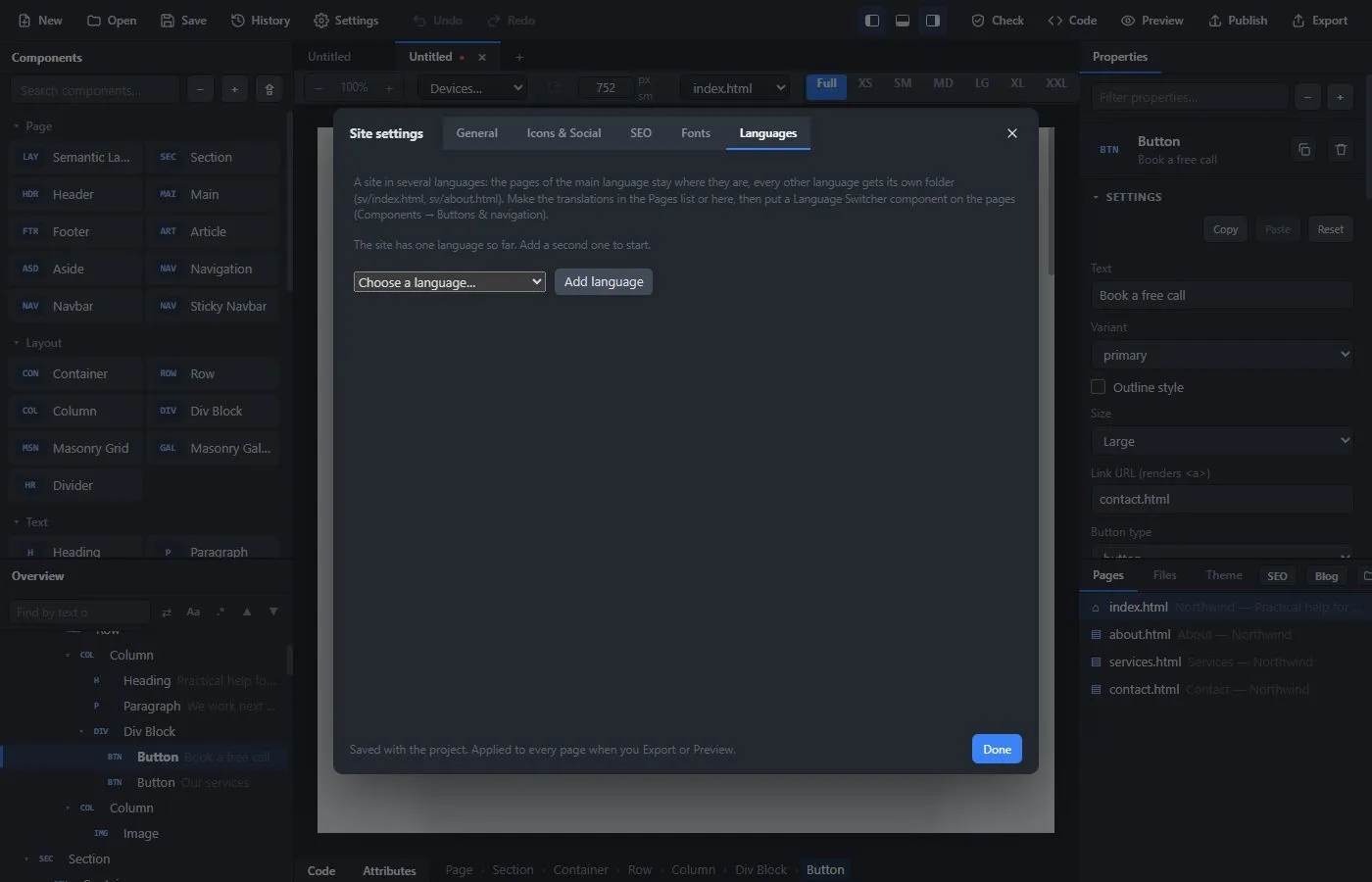
A site can have several languages. The pages of your main language stay where they are (index.html, about.html). Every other language gets its own folder: for Swedish, sv/index.html and sv/about.html. The pages of different languages are linked together, so a visitor can switch from a page to the same page in another language.
Add a language #
- Open Site settings → Languages.
- Choose a language in the list and press Add language.
- The language appears in the list with a counter such as "0 of 4 translated". Press Make the 4 missing. The app makes a copy of every page in the new language, in its folder, with the links between the copies already pointing at each other.
- Translate the copies. See below.
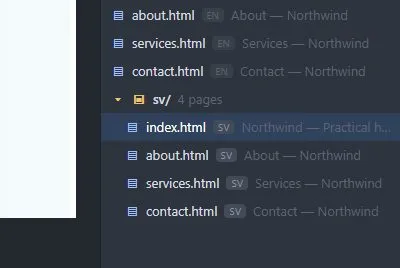
The radio button on a language marks the main language of the site: the one whose pages are in the top folder. You can remove a language again. The app then asks whether to delete its pages or keep them as ordinary pages.
Translate the texts #
The copies are normal pages. You can open them in the Pages list (each page shows its language code) and edit them like any other page.
For long pages there is a faster way. Select the translated page (the top row of the Overview) and press Translate texts… in its properties. The Translate window shows every text of the page next to the original.
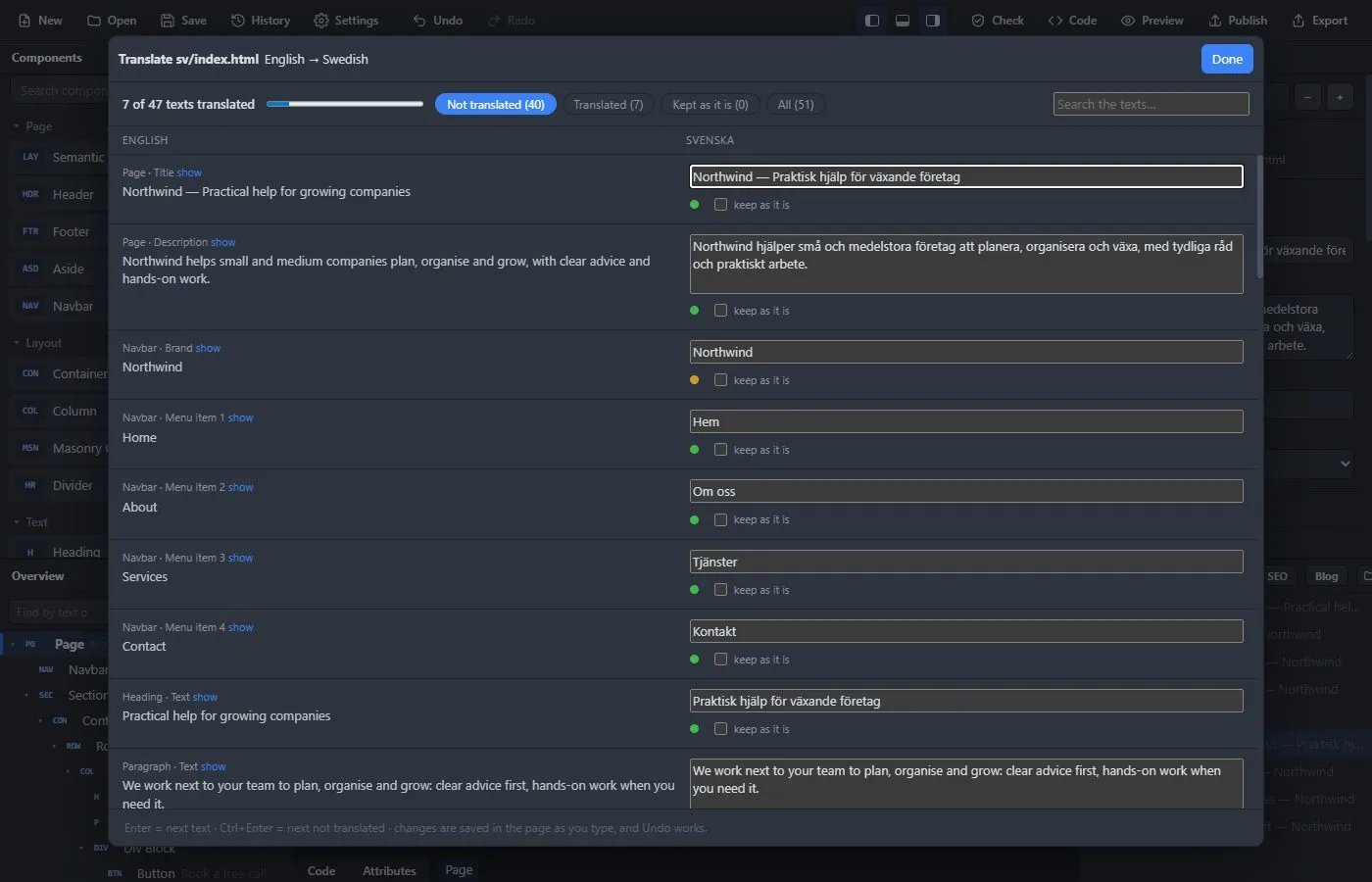
- Type the translation in the box on the right. Each box shows whether the text is still the original, is translated, or was suggested by a machine.
- Enter goes to the next text and Ctrl+Enter to the next text that is not yet translated.
- Changes are saved in the page as you type, and Undo works.
- You can filter the list to see only what is not translated yet, and search it.
Translate with DeepL #
The app can suggest translations with DeepL. It uses your own DeepL account:
- Get a DeepL API key. A free key works and allows 500,000 characters a month.
- In Site settings → Languages, paste it into the Machine translation (DeepL) box and press Save and test. The key is kept on your computer, encrypted, and is never part of a project file or an export.
- In the translation window, use the suggestion button on a text, or Suggest all not translated. Before anything is sent, the app tells you how many texts and how many characters will go to DeepL.
The suggestions are marked, so you can read them and correct them. Only the texts you ask for are sent to DeepL. This feature is only in the desktop app, and needs an internet connection while you use it.
Let visitors switch language #
Add a Language Switcher (in Buttons & navigation) to your pages, for example in the navbar. It shows the languages of the site and links to the same page in the other language, or to that language's home page when the page has not been translated yet.
If you turn on Send visitors to their own language, the first time someone opens the home page they are sent to the version in their browser's language, if there is one. This happens once per visit, and they can always switch back.
What the exported site contains #
- Each language has its own folder of pages, with the right language set on every page.
- The pages that belong together point to each other, so search engines can show the right version to each visitor.
- Run Check before you publish. It tells you about pages that are not translated yet and texts that are still in the original language.
Limits #
- The language switcher and redirect work on the finished site, not in the editor.
- A blog is shared by all languages; a separate blog for each language is not built in yet.