Your first site
From a starter to a finished, exported website in about ten minutes.
This walk-through uses a starter site. You will change some text, add a component, give the site a new look, check it on a phone and export it. You can follow it in the desktop app or in the web demo.
1. Start from a template #
Choose File → New → New from Template… (Ctrl+Shift+N). The list shows the built-in starters, and any HTML templates you have imported. If you want the project and all its pictures and files kept together in one folder on your computer, choose File → New → New Website… instead; it gives you the same list of starting points, and is described under Keep everything in one folder below.
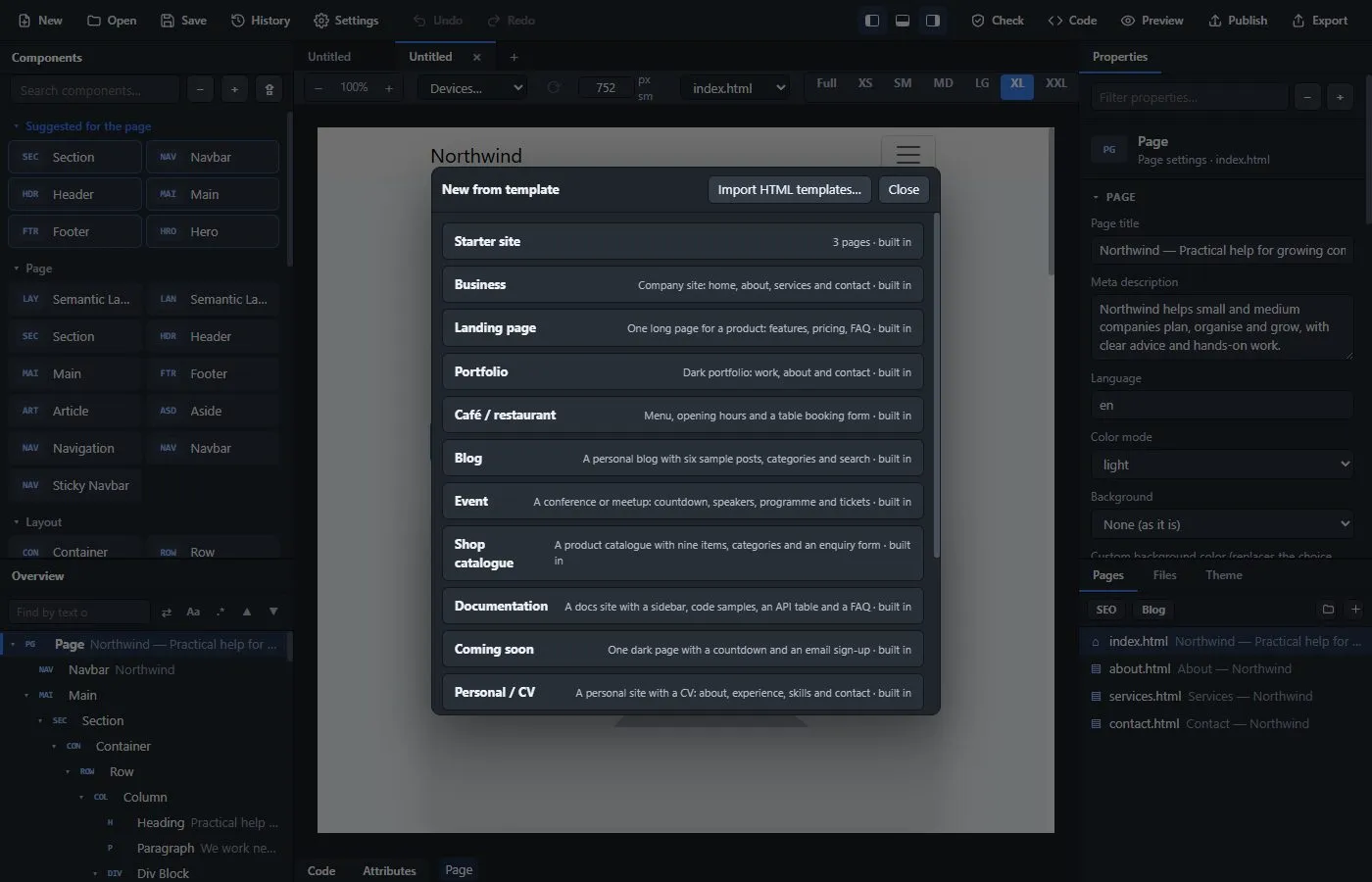
Pick Business. A new project opens in a new tab with four pages: Home, About, Services and Contact. Every page already has a navbar and a footer. The pictures are empty placeholders, ready for yours.
2. Look around #
- The middle shows the page you are editing. Use the page list above it to switch pages, or click a page in the Pages list at the bottom right.
- The left has the Components you can add, and the Overview, a tree of everything on the page.
- The right shows the Properties of whatever you have selected.
Click anything on the page to select it. The Properties panel on the right changes to show that element's settings.
3. Change some text #
Double-click a heading or a paragraph on the page and type. Press Enter (or click outside) to keep the change, or Esc to cancel.
You can also select a heading and change its Text in the Properties panel. The Level menu there changes it between H1 and H6.
4. Change a button #
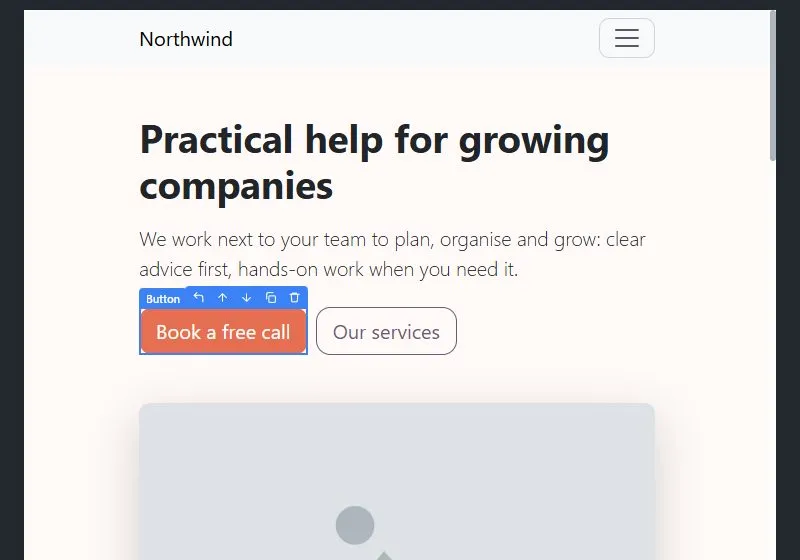
Click the Book a free call button. In Properties you can change its Text, its Variant (the color), whether it is an Outline button, its Size and where it links to.
The Link URL box suggests the names of your own pages, so you can type about and pick about.html. When you rename a page later, the links that point to it are updated for you.
5. Add a component #
Find Card in the Components panel, or type in the search box above the list. Then either:
- drag it onto the page or into the Overview tree. An orange line shows where it will land, and the app only allows places where it makes sense; or
- click it. It is added inside the selected element when that element can hold it, and otherwise right after it.
Select the card and change its text. A card is made of a heading, some text and a button, and each of those is a component you can select and edit.
6. Give the site a new look #
Open the Theme tab at the bottom right. The Style menu has ready-made color schemes. Choose Sunset, and the buttons, links and form fields all change color at once.
Later, Design explains the Theme tab, the Look setting and fonts in detail.
7. See it on a phone #
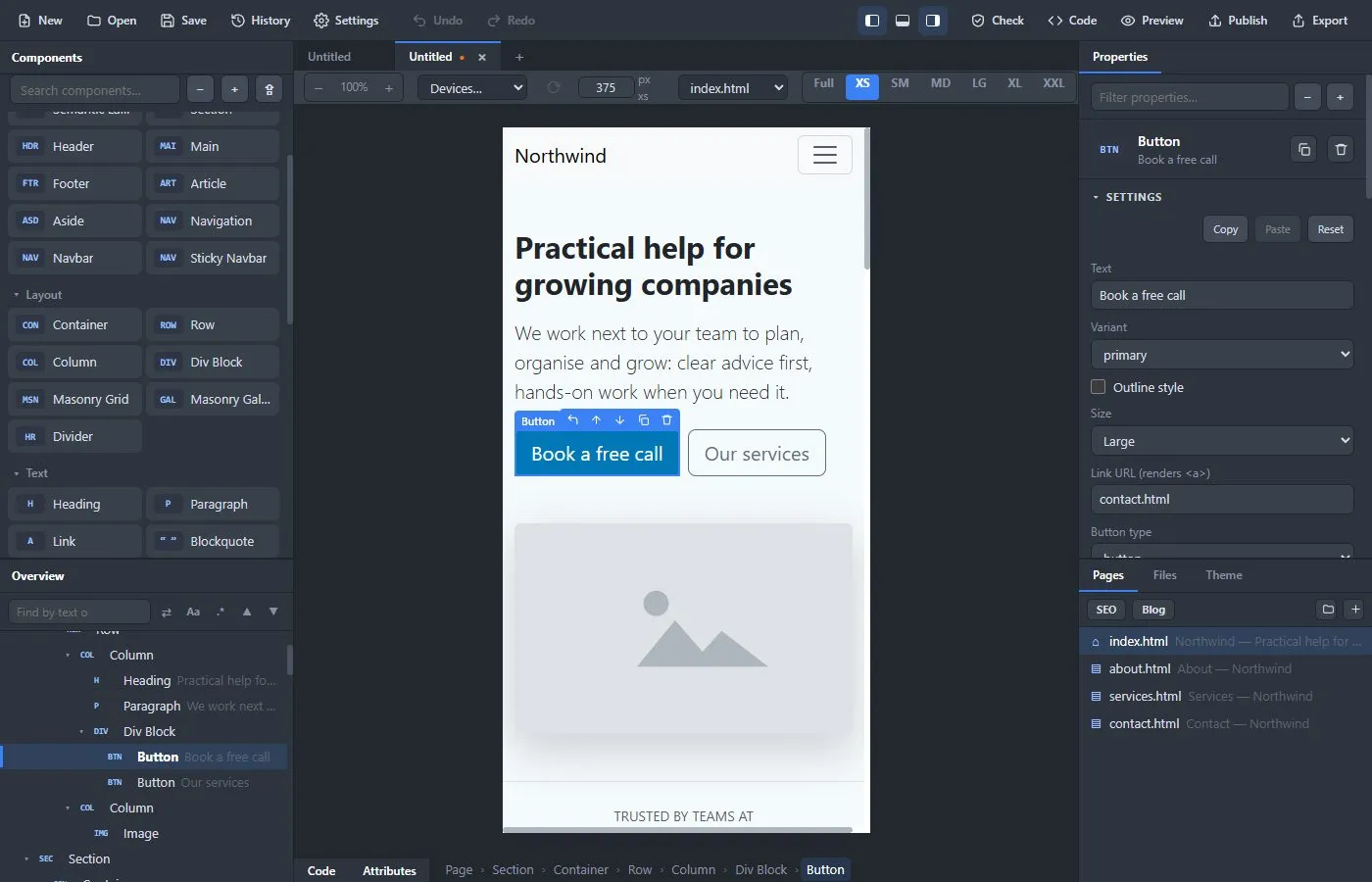
Above the page there is a row of sizes: Full, XS, SM, MD, LG, XL and XXL. Click XS to see the page at the width of a phone. These are Bootstrap's breakpoints, so what you see is what visitors with that screen size get.
8. Save your project #
Press Ctrl+S. The first time, you choose a name and a place; the file ends in .bsb. Next time you press Ctrl+S it saves to the same file.
Keep everything in one folder #
So that your pictures do not end up all over the computer, choose File → New → New Website… instead of a plain new project. You pick a folder (create one if you like), then a starting point. The app saves the project in that folder and makes an assets folder next to it with img, files and fonts inside. Every picture, PDF, audio file and font you use is copied into assets when you save, so the folder holds the whole website. The project file points at them with addresses relative to the folder, which means you can move, rename, zip or send the whole folder and it still opens with everything in place. Export (Ctrl+E) then writes the finished site to an html folder next to the project file, without asking where.
A website folder project is easy to tell from a plain project: its tab has a small blue folder icon before the name (hover it to see the folder), and the window title says (website).
Files are only ever added to assets, never deleted by themselves: if you remove a picture or video from a page, the file stays, so that Undo and the version history keep working. When the folder has collected files you no longer use, choose File → Website Folder → Remove Unused Assets…. It lists the files in assets that nothing in the project refers to, with their sizes. Untick any you want to keep, and the rest are moved to the Recycle Bin (so you can get them back). A file counts as used if its name appears anywhere in the project, also in your own CSS or code, so the list errs on the side of keeping. A script, stylesheet or data file in assets that is used also protects the files it names: if the project uses app.js, and app.js imports lib.js, which loads data.json, none of the three is listed. (The scripts you write in the editor live in the project itself, not in assets.) What cannot be recognised is a file name put together by a script, such as "img-" + number + ".png"; such files may be listed, so look through the list before you confirm. Older versions in the version history may still use a file you remove.
For a project you already have, choose File → Website Folder → Convert to Website Folder…. It proposes a new folder named after the project, next to the project file (or in your Documents folder if the project was never saved); you can accept it with Create it and convert or pick another with Choose another folder…. The project is saved there as a new file and everything it uses is copied in. The original project file is not touched, and the message afterwards tells you where it is. Once a project is a website folder project, the same menu entry reads Gather Assets Again: it copies in anything that has come from outside the folder since (this also happens every time you save). Pictures that were saved inside the project file are taken out and become files in assets, which also makes the project file much smaller.
9. Preview in your browser #
Press F5 (Preview). Your page opens in your normal browser, and it updates by itself as you keep editing. Things like menus and the navbar toggle work there exactly as on the finished site.
10. Export #
Press Ctrl+E (Export) and choose an empty folder. The app writes the finished site there: one HTML file per page, a styles file, Bootstrap, and your images. Open index.html in your browser to see it, or upload the folder to any web host. To upload from inside the app, see publish.
What next? #
- Learn the editor in detail.
- Browse the components you can use.
- Run Check (Ctrl+Shift+K) to find missing titles, picture descriptions and broken links before you publish: see check, export and publish.